Configure a Learning Interaction component
Included with each quiz template is one of each of the six learning interaction types, stored in movie clips in the library. These movie clips are containers for the collection of elements that make up each interaction. When you add an interaction (movie clip) to the Stage, break it apart to edit the individual objects.
-
Select the Learning Interaction component.
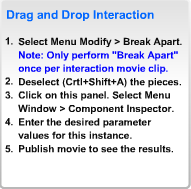
Note: Do not delete these instructions; they contain necessary ActionScript code and do not appear in the SWF file. -
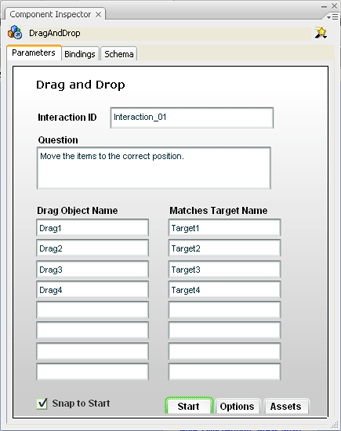
In the Property inspector, click Launch Component Inspector.
Related Information
- Configure a Drag and Drop interaction
- Configure a Fill In The Blank interaction
- Configure a Hot Object interaction
- Configure a Hot Spot interaction
- Configure a Multiple Choice interaction
- Configure a True or False interaction
- Adding, naming, and registering assets
- Set Knowledge Track options for a learning interaction
- Set navigation options for a learning interaction
