Add learning interactions to a quiz template

When you use a quiz template, you add learning interactions to the Interactions layer.

  1. In the first layer of the Timeline, select the frame that precedes the frame number where you want to add the interaction. For example, to add an interaction to Frame 8, select Frame 7.
  2. Shift-click the same frame number on the other layers to also select those frames.
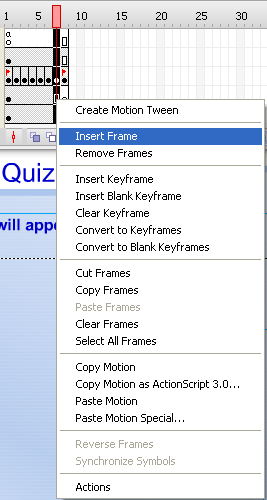
  3. Right-click (Windows) or Control‑click (Macintosh) a selected frame and select Insert Frames to extend the Timeline evenly across all layers.
  4. On the Interactions layer, select the frame you added and select Insert > Timeline > Blank Keyframe.
  5. To add an interaction, do one of the following:
    • To copy and paste an interaction that already exists in the Timeline, right-click (Windows) or Control‑click (Macintosh) the keyframe with the interaction and select Copy Frames. Paste the frame in the blank keyframe that you inserted in step 4. In this copy of the interaction, modify objects on the Stage or the settings in the Component inspector.

    • To use an interaction from the library, drag the desired interaction movie clip type from the Learning Interactions library (Window > Common Libraries > Learning Interactions) to the blank keyframe. Break the interaction apart (select the interaction and select Modify > Break Apart), and edit the assets and parameters.

  This page on the Web