Modify learning interactions in a quiz template
Each question in the quiz is considered an interaction. When you use a quiz template, you place interactions sequentially between the first and last frame of the Interactions layer on the root Timeline. Add or remove frames and keyframes as needed, as long as the interactions remain sequential and the first and last frames are reserved for the Welcome and Results pages. The number of frames between the Welcome and Results page keyframes are used to calculate the score.
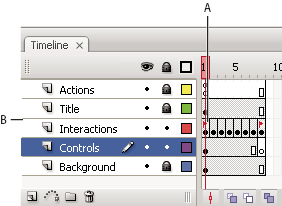
- A.
- First frame of the layer
- B.
- Interactions layer
For example, the following 12 keyframes on the Interactions layer comprise a 10‑question quiz:
-
Frame 1 = Welcome page keyframe
-
Frames 2–11 = Interactions keyframes
-
Frame 12 = Results page keyframe
- Select the first frame on the Interactions layer and modify the text of the Welcome page. Include text to indicate that the user must click Next to continue. Do not add an interaction to this page.
-
Select each of the learning interactions in the next
six frames and do one of the following:
-
To use the interaction, configure it.
-
If you do not want to use the interaction, remove it.
-
- Select the last frame in the Interactions layer and modify the text of the Results page. Leave the supplied dynamic text field names intact, or the results will not appear. Do not delete or place interactions in this frame. If the Results Page quiz parameter is turned off for the quiz, this frame is not called, but it is still reserved.
