Set quiz parameters

Quiz parameters control how the entire quiz is presented to users—for example, whether the questions are presented in a random or sequential order, the number of questions to display, and whether the Results page appears.

  1. Select the Quiz Options component with instructions to the left of the Stage in the quiz template. This component lets you set the parameters for the quiz.
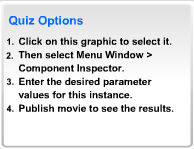
    Note: These instructions do not appear in the SWF file.
  2. Do one of the following to open the Component inspector:
    • Select Window > Component Inspector.

    • In the Property inspector, click Launch Component Inspector.
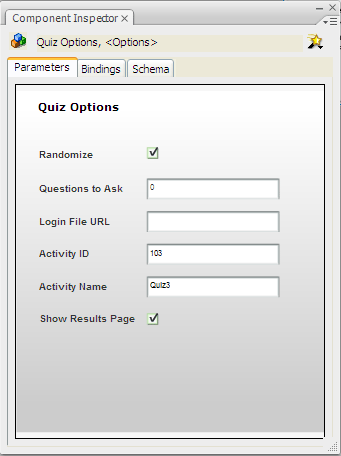

    Note: If the text in the Component inspector is too small to be legible, undock the panel and drag a corner of the panel to enlarge it.
  3. Select Randomize to present the quiz questions in a random order.
  4. In the Questions To Ask box, specify the number of questions to ask for one presentation of the quiz. If you set this number to 0, the quiz uses all the questions you add to the document. If you enter a number larger than the number of questions in the quiz, the quiz displays only the number of questions that are in the quiz and does not duplicate any of them.

    For example, if you have 10 interactions in your quiz, you can specify that a lesser number, such as 5 interactions, appear to the user. Use this feature with the Randomize feature to create quizzes with unexpected questions in an unexpected order.

  5. Enter the URL to redirect the user.

    When an AICC-compliant LMS starts a quiz, it includes parameters that the HTML code looks for when it executes the embed tag for the Flash application, and the course loads properly. If no parameters are specified, the user is redirected to the URL specified in the Login File URL field. If this field is blank or the Flash file was published with the SCORM template, the redirection does not occur.

  6. In the Activity ID and Activity Name boxes, enter the activity ID and activity name of your LMS. If you are not using an LMS, either accept or delete the default entries.
  7. Select Show Results Page to present quiz results to users after they complete the quiz.

  This page on the Web