

Adjust luminance using levels
The Fast Color Corrector and the Three‑Way Color Corrector effects have Input Levels and Output Levels controls to adjust the luminance in a clip. The controls are similar to the ones in Photoshop’s Levels dialog box. In the Fast Color Corrector effect, control settings are applied to all three color channels in a clip. The Three‑Way Color Corrector effect lets you apply the levels adjustments to the entire tonal range in the clip, a specific tonal range, or specific range of colors.
- Drag the Fast Color Corrector effect or the Three‑Way
Color Corrector to the clip in the Timeline panel.
 If the clip is already selected in the
Timeline panel, you can drag the effect to the Video Effects area
of the Effect Controls panel.
If the clip is already selected in the
Timeline panel, you can drag the effect to the Video Effects area
of the Effect Controls panel. - Use the Output Levels slider controls to set the maximum
black and white levels:
- Black Output slider
- Controls the resulting output of the shadows. The default is 0, where the pixels are completely black. Moving the slider to the right specifies a lighter value for the darkest shadow.
- White Output slider
- Controls the resulting output of the highlights. The default is 255, where the pixels are completely white. Moving the slider to the right specifies a darker value for the brightest highlight.
If the YC Waveform is displayed in a Reference
Monitor, adjust the Black Output and White Output sliders so the
maximum black and white levels of the waveform are within 7.5 to
100 IRE. This ensures that the levels are within broadcast standards.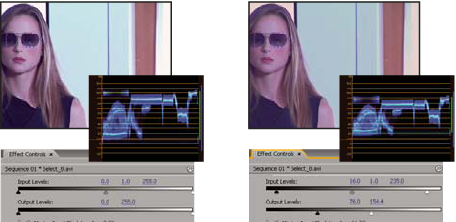 Original image (left); blacks and whites corrected to broadcast limits (right)