

Three‑Way Color Corrector effect
(High bit-depth) The Three‑Way Color Corrector effect lets you make subtle corrections by adjusting a clip’s hue, saturation, and brightness for the shadow, midtones, and highlights. The effect has a histogram that displays the image’s luminance. You can further refine your adjustments by specifying the color range to be corrected by using the Secondary Color Correction controls.
- Output
- Lets you view adjustments in the Program monitor as the final results (Composite), tonal value adjustments (Luma), display of the alpha matte (Mask), or a tri‑tone representation of the shadows, midtones, and highlights (Tonal Range).
- Show Split View
- Displays one part of the image as the corrected view and the other part of the image as the uncorrected view.
- Layout
- Determines whether the Split View images are side by side (Horizontal) or above and below (Vertical).
- Split View Percentage
- Adjusts the size of the corrected view. The default is 50%.
- Black Balance, Gray Balance, White Balance
- Assigns a black, midtone gray, or white balance to a clip. Use the different Eyedropper tools to sample a target color in the image, or choosing a color from the Adobe Color Picker.
- Tonal Range Definition
-
Defines the tonal range of the shadows, midtones, and highlights
in a clip. Drag the square sliders to adjust the threshold values.
Drag the triangle sliders to adjust the amount of softness (feathering).
 Choose Tonal Range from the Output pop‑up menu
to view the highlights, midtones, and shadows as you adjust the
Tonal Range Definition controls.
Choose Tonal Range from the Output pop‑up menu
to view the highlights, midtones, and shadows as you adjust the
Tonal Range Definition controls. - Shadow Threshold, Shadow Softness, Highlight Threshold, Highlight Softness
- Determine the threshold and softness of the shadows, midtones, and highlights in a clip. Enter values or click the triangle next to the option name and drag the slider.
- Tonal Range
-
Chooses the tonal range adjusted by the Hue Angle, Balance Magnitude,
Balance Gain, Balance Angle, Saturation, and Levels controls. Highlights
is the default. Other options in the pop‑up menu are Master, Shadows, and
Midtones.
Note: You can still adjust all three tonal ranges using the three color wheels even after you choose from the Tonal Range pop‑up menu.
- Three‑Way Hue Balance and Angle
-
Controls hue and saturation adjustments using three color
wheels for the shadows (left wheel), midtones (middle wheel), and
highlights (right wheel). A single master wheel appears when Master
is chosen from the Tonal Range pop‑up menu. A circular thumb moves
about the center of the wheel and controls the hue (UV) translation.
A perpendicular handle on the thumb controls the balance magnitude,
which affects the relative coarseness or fineness of the control.
The outer ring of the wheel controls hue rotation.
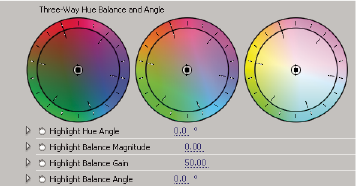 Three-Way Hue Balance And Angle color wheels
- Highlights/Midtones/Shadows Hue Angle
- Controls the hue rotation in the highlights, midtones, or shadows. The default value is 0. Negative values rotate the color wheel to the left and positive values rotate the color wheel to the right.
- Highlights/Midtones/Shadows Balance Magnitude
- Controls the amount of color balance correction as determined by the Balance Angle. The adjustment can be applied to highlights, midtones, and shadows.
- Highlight/Midtones/Shadows Balance Gain
- Adjusts brightness values by multiplication so that lighter pixels are affected more than darker pixels. The adjustment can be applied to highlights, midtones, and shadows.
- Highlights/Midtones/Shadows Balance Angle
- Controls the hue translation in the highlights, midtones, or shadows.
- Highlights/Midtones/Shadows Saturation
- Adjusts the color saturation in the highlights, midtones, or shadows. The default value is 100, which doesn’t affect the colors. Values less than 100 decrease saturation, with 0 completely removing any color. Values greater than 100 produce more saturated colors.
- Auto Black Level
- Raises the black levels in a clip so the darkest levels are above 7.5 IRE. A portion of the shadows is clipped and the intermediate pixel values are redistributed proportionately. As a result, using Auto Black Level lightens the shadows in an image.
- Auto Contrast
- Applies both the Auto Black Level and Auto White Level simultaneously. This makes the highlights appear darker and shadows appear lighter.
- Auto White Level
- Lowers the white levels in a clip so the lightest levels do not exceed 100 IRE. A portion of the highlights is clipped and the intermediate pixel values are redistributed proportionately. As a result, using Auto White Level darkens the highlights in an image.
- Black Level, Gray Level, White Level
- Sets the levels for darkest shadow, midtone gray, and lightest highlight using the different Eyedropper tools to sample a target color in the image or anywhere on your monitor’s desktop. You can also click the color swatch to open the Adobe Color Picker and select a color to define the black, midtone gray, and white.
- Input Levels
-
The outer two Input Levels sliders map the black point and
white point to the settings of the Output sliders. The middle Input
slider adjusts the gamma in the image. It moves the midtone and
changes the intensity values of the middle range of gray tones without
dramatically altering the highlights and shadows.
 Input Levels slider
- Output Levels
-
Map the black point and white point input level sliders to specified
values. By default, the Output sliders are at level 0, where the
shadows are completely black, and level 255, where the highlights
are completely white. So, in the default position for the Output
sliders, moving the black input slider maps the shadow value to
level 0, and moving the white point slider maps the highlight value
to level 255. The remaining levels are redistributed between levels
0 and 255. This redistribution increases the tonal range of the
image, in effect increasing the overall contrast of the image.
 Output Levels slider
- Input Black, Input Gray, Input White
- Adjust the black point, midtone, and white point input levels for the highlights, midtones, or shadows.
- Output Black, Output White
- Adjust the mapped output levels for the input black and input white levels for the highlights, midtones, or shadows.
- Secondary Color Correction
-
Specifies the color range to be corrected by the effect.
You can define the color by hue, saturation, and luminance. Click
the triangle to access the controls.
Note: Choose Mask from the Output menu to view the areas of the image that are selected as you define the color range.
- Center
- Defines the central color in the range that you’re specifying. Select the Eyedropper tool and click anywhere on your screen to specify a color, which is displayed in the color swatch. Use the + Eyedropper tool to extend the color range, and use the – Eyedropper tool to subtract from the color range. You can also click the swatch to open the Adobe Color Picker and select the center color.
- Hue, Saturation, and Luma
- Specify the color range to be corrected by hue, saturation, or luminance. Click the triangle next to the option name to access the threshold and softness (feathering) controls to define the hue, saturation, or luminance range.
- Soften
- Makes boundaries of the specified area more diffuse, blending the correction more with the original image. A higher value increases the softness.
- Edge Thinning
- Makes the specified area more sharply defined. The correction becomes more pronounced. A higher value increases the edge definition of the specified area.
- Invert Limit Color
- Corrects all colors except for the color range that you specified with the Secondary Color Correction settings.