Tween motion along a path
Motion guide layers let you draw paths along which tweened instances, groups, or text blocks can be animated. You can link multiple layers to a motion guide layer to have multiple objects follow the same path. A normal layer that is linked to a motion guide layer becomes a guided layer.
For a video tutorial about motion tweens, see www.adobe.com/go/vid0125.
For a tutorial about motion tweens, see Create a Timeline Animation on the Flash Tutorials web page at www.adobe.com/go/learn_fl_tutorials.
For samples of animation, see the Flash Samples page at www.adobe.com/go/learn_fl_samples. The following samples are available:
-
Animated Drop Shadow: Download and decompress the Samples zip file and navigate to the Graphics\AnimatedDropShadow folder to access the sample.
-
Animation and Gradients: Download and decompress the Samples zip file and navigate to the Graphics\AnimationAndGradients folder to access the sample.
 Create a motion path for a tweened
animation
Create a motion path for a tweened
animation
-
Do
one of the following:
-
Select the layer containing the animation, and select Insert > Timeline > Motion Guide.
-
Right-click (Windows) or Control‑click (Macintosh) the layer containing the animation and select Add Motion Guide.
Flash creates a new layer above the selected layer with a motion guide icon to the left of the layer name.
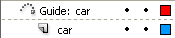 Motion guide layer above selected layer
-
-
Use the Pen, Pencil, Line, Circle, Rectangle, or Brush
tool to draw the desired path.
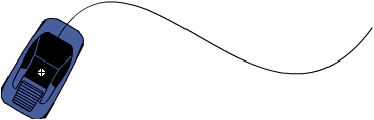
Link layers to a motion guide layer
 Do one of the following:
-
Drag an existing layer below the motion guide layer. The layer is indented under the motion guide layer. All objects on this layer automatically snap to the motion path.
-
Create a new layer under the motion guide layer. Objects you tween on this layer are automatically tweened along the motion path.
-
Select a layer below a motion guide layer. Select Modify > Timeline > Layer Properties, and select Guide.
