Apply custom ease in/ease out to motion tweens
The Custom Ease In/Ease Out dialog box displays a graph representing the degree of motion over time. The horizontal axis represents frames, and the vertical axis represents percentage of change. The first keyframe is represented as 0%, and the last keyframe is represented as 100%.
The slope of the graph’s curve represents the rate of change of the object. When the curve is horizontal (no slope), the velocity is zero; when the curve is vertical, an instantaneous rate of change occurs.
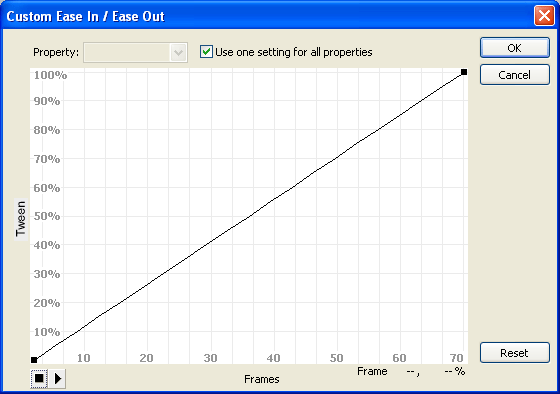
 Additional controls for the Custom
Ease In/Ease Out dialog box
Additional controls for the Custom
Ease In/Ease Out dialog box
- Use One Setting For All Properties check box
-
The default is selected; the displayed curve is used for all properties, and the Properties pop‑up menu is disabled. When the check box is not selected, the Properties pop‑up menu is enabled, and each property has a separate curve defining the velocity of that property.
- Property pop‑up menu
-
Enabled only when the Use One Setting for All Properties check box is not selected. When enabled, a separate curve is maintained for each of the five properties appearing in the menu. Selecting a property in the menu displays the curve for that property. The properties are:
- Position
-
Specifies custom ease settings for the position of an animated object on the Stage.
- Rotation
-
Specifies custom ease settings for the rotation of an animated object. For example, you can fine-tune how quickly or slowly an animated character turns around to face the user on the Stage.
- Scale
-
Specifies custom ease settings for the scale of an animated object. For example, you can more easily customize the scale of an object so it appears to be moving away from the viewer, then coming closer, and then moving away again.
- Color
-
Specifies custom ease settings for color transitions applied to an animated object.
- Filters
-
Specifies custom ease settings for filters applied to an animated object. For example, you can control the ease setting of a drop shadow that simulates a change in the direction of a light source.
- Play and Stop buttons
-
Let you preview an animation on the Stage using all the current velocity curves defined in the Custom Ease In/Ease Out dialog box.
- Reset button
-
Lets you reset the velocity curve to the default, linear state.
- Position of the selected control point
-
In the lower-right corner of the dialog box, a numeric value displays the keyframe and position of the selected control point. If no control point is selected, no value appears.
To add a control point to the line, click the diagonal line once. To achieve a precise degree of control over the motion of an object, drag the positions of the control points.
Using frame indicators (represented by square handles), click where you want an object to slow down or speed up. Clicking the square handle of a control point selects that control point, and displays the tangent points on either side of it. Hollow circles represent tangent points. Drag the control point or its tangent points with the mouse or use the keyboard’s arrow keys to position them.
 By default, the
control points snap to a grid. You can turn off snapping by pressing
the X key while dragging the control point.
By default, the
control points snap to a grid. You can turn off snapping by pressing
the X key while dragging the control point.Clicking an area of the curve away from any control points adds a new control point to the curve at that point, without changing the shape of the curve. Clicking away from the curve and control points deselects the currently selected control point.
Use the Custom Ease In/Ease Out
dialog box
- Select a layer in the Timeline that has a motion tween applied to it.
- Click the Edit button next to the Ease slider in the frame Property inspector.
- (Optional) To display the curve for a property, deselect Use One Setting For All Properties, and select a property in the menu.
- To add a control point, Control‑click (Windows) or Command-click (Macintosh) the diagonal line.
- To increase the speed of the object, drag the control point up; to slow down the speed of the object, drag it downwards.
- To further adjust the ease curve, and fine tune the ease value of the tween, drag the vertex handles.
- To view the animation on the Stage, click the play button in the lower-left corner.
- Adjust the controls until you achieve the desired effect.
