| Burn a disc image file |
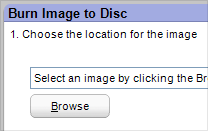
Click on the Browse button to select
the disc image file to burn. |
The Burn
Image project recreates discs from disc image files saved on your
hard drive. These files can be used to create new copies of your discs
whenever you wish.
To learn how to create a disc image file
from a disc, see Create a disc image file.
For a more detailed discussion of image files and image file types, see
Understanding disc image files.
|
- Discs used in a Burn Image project must
be blank or rewritable. Any data contained on a rewritable disc will
be erased before the disc image is burned.
- Burning discs from a disc image file is especially useful
when you only have one disc drive. It eliminates the need to create
a temporary file on your hard drive every time you copy the same disc.
- Your disc image files must have been saved in one of
the following formats:
- ISO disc images (*.iso)
- Roxio Disc Images (*.c2d)
- Sonic Global-Images (*.gi)
- BIN/CUE disc images (*.bin / *.cue)
- UDI disc images (*.udi).
|
To burn a disc image file:
- Click on the Copy tab in the project
list. A list of projects is displayed.
- Click on the Burn Image project.
- In the project window, select a disc image file to burn
using one of the following methods:
- Click on the Browse button
and navigate to the disc image file on your hard drive.
- Click in the text box directly above the
Browse button. A list of the last 10 disc image
files you've created will appear. Choose a disc image file from
the list.
- Click on the action button to begin recording.
|






