

Adjust color balance and saturation
Although the following procedure uses the color wheel adjustments. The same adjustments can be made by entering numeric values or using the slider controls in the Fast Color Corrector and Three‑Way Color Corrector effects.
- To adjust the color balance, do any of the following
using the color wheel:
-
To change all the colors without affecting the gain or magnitude, rotate the outer ring. Rotating the ring to the left, rotates all colors towards green. Rotating the ring to the right, rotates all colors towards red.
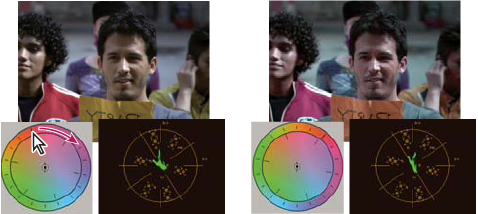 Rotating the outer ring of the color wheel (left) changes the hue angle (right).
-
To shift the colors towards a target color with gain and magnitude adjustment, drag the Balance Magnitude circle out from the center towards the color you want introduced into the image. The farther you drag the Balance Magnitude from the center, the introduced color is more intense. Drag the Balance Gain handle to fine‑tune the intensity of the Balance Magnitude adjustment. You can make the adjustment very subtle.
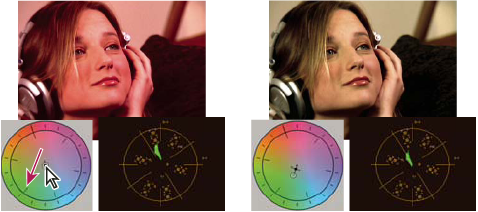 Adjusting the Balance Gain to fine‑tune the Balance Magnitude setting.
Note: The Three‑Way Color Corrector effect lets you make separate adjustments to the three tonal ranges using individual wheels for the shadows, midtones, and highlights. -