

About audio tracks in a sequence
A sequence can contain any combination of the following audio tracks:
- Mono (monophonic)
- Contains one audio channel.
- Stereo
- Contains two audio channels (left and right).
- 5.1
-
Contains three front audio
channels (left, center, and right), two rear or surround audio channels
(left and right), and a low‑frequency effects (LFE) audio channel
routed to a subwoofer speaker.
You can add or delete tracks at any time. Once a track is created, you can’t change the number of channels it uses. A sequence always contains a master track that controls the combined output for all tracks in the sequence. The master track’s format is specified in the Default Sequence options of the Project Settings dialog box (choose Project > Project Settings > Default Sequence). The Sequence type must be set when creating a new project or creating a new sequence and cannot be changed once created. The Project Settings dialog box also specifies the default number of audio tracks in a sequence and the number of channels in the default audio tracks.
A sequence can contain two types of audio tracks. Regular audio tracks contain actual audio. Submix tracks output the combined signals of tracks or sends routed to it. Submix tracks are useful for managing mixes and effects.
Although each sequence is created with a default number of audio tracks in the Timeline panel, Adobe Premiere Pro automatically creates new audio tracks when you drop an audio clip below the last audio track in the Timeline panel. This feature is useful if the number of audio clips that you’re stacking exceeds the number of available tracks in a sequence, or if the number of channels in an audio clip doesn’t match the number of channels in the default audio tracks. You can also add tracks by right-clicking a track header and choosing Add Tracks, or by choosing Sequence > Add Tracks.
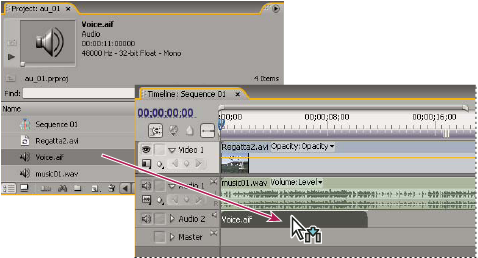 Adobe Premiere Pro creates new audio track to match channel format of clip dragged to Timeline panel.