

Targeting tracks
A sequence may contain several video and audio tracks. When you add a clip to a sequence, you need to specify which tracks it should occupy. The way you specify target tracks depends on the editing method you use.
-
When you drag a clip to add it to a sequence, you target the track by dropping the clip into the track. If you are inserting the clip, pressing Ctrl (Windows) or Command (Mac OS) as you drag, triangles show which tracks will have content shifted.
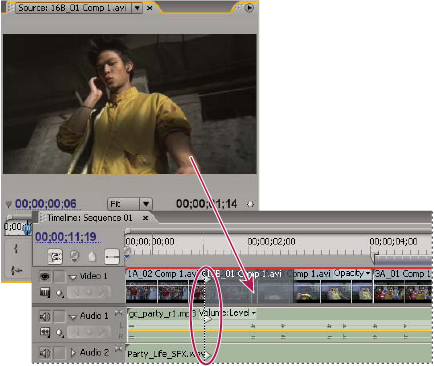 Targeting a track while dragging a clip to a sequence
-
When you add clips to a sequence using the Source Monitor controls (or keyboard shortcuts), you must specify target tracks in advance. You can’t target more than one video track or more than one audio track at a time. However, you can choose to target a video track only or an audio track only. Click the track you want to target in the track header area of the Timeline panel. The track header area appears highlighted and has rounded corners.
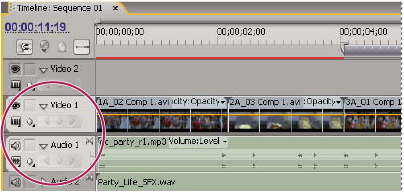 Targeting a track by clicking the track
If you overlay a clip, only the targeted track is affected, whether you drag the clip or use a Source Monitor’s Overlay button.
If you insert a clip, the clip goes into the targeted track, and clips in any unlocked tracks shift to accommodate the insertion.
 To insert a clip and not shift clips in other
tracks, Ctrl‑Alt‑drag (Windows) or Command-Option-drag (Mac OS)
the clip into the track.
To insert a clip and not shift clips in other
tracks, Ctrl‑Alt‑drag (Windows) or Command-Option-drag (Mac OS)
the clip into the track.You can drag video clips to any video track; however, you can drag audio clips only to a compatible audio track. Audio clips can’t be added to the master audio track or submix tracks, and they can be placed only on audio tracks of the matching channel type: mono, stereo, or 5.1 (see About audio tracks in a sequence).
Clips with linked video and audio can be dragged to either a video or an audio track, but the clip’s video and audio components appear separately, in the appropriate corresponding tracks.