

Adding clips to a sequence
You can add clips to a sequence in the following ways:
-
Drag the clip from the Project panel or Source Monitor to the Timeline panel or the Program Monitor.
-
Use the Insert and Overlay buttons in the Source Monitor to add clips to the Timeline panel. Or use the keyboard shortcuts associated with those buttons.
-
Automatically assemble a sequence according to how the clips are arranged in the Project panel.
An overlay edit adds a clip by replacing any frames already in a sequence starting from the edit point and extending for the length of the clip. Overlay is the default method when dragging a clip to a sequence or when rearranging clips in a sequence.
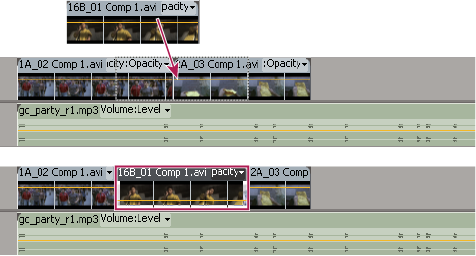
With an insert edit, adding a clip to the sequence forces any clips later in time to shift forward to accommodate the new clip. When dragging a clip, press the Ctrl (Windows) or Command (Mac OS) key to shift into insert mode.
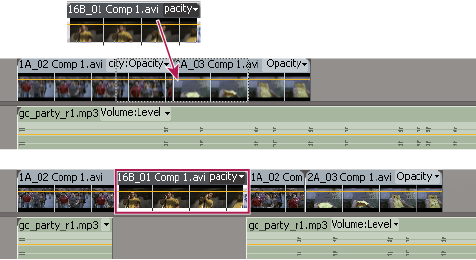
 An insert edit shifts clips in all unlocked tracks.
To prevent an insert edit from shifting clips in another track,
lock the track.
An insert edit shifts clips in all unlocked tracks.
To prevent an insert edit from shifting clips in another track,
lock the track.