

Time Difference effect
The Time Difference effect calculates the color difference between two layers and is a useful aid in color correction; use it to extract color differences when matching a clean background plate with foreground footage. It’s also good for creating mattes to be used to apply trails of smoke, fire, or echoing effects. Once you’ve applied Time Difference to locate color differences in footage, use color and levels controls to apply the color corrections.
This effect works with 8-bpc color.
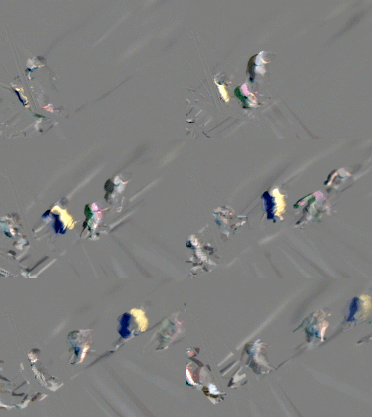
Time Difference effect
 Use Time Difference with Particle Playground
to shed particles only from moving sections.
Use Time Difference with Particle Playground
to shed particles only from moving sections.- Target
- Specifies the layer to be compared to the effect layer. The comparison layer’s Video switch doesn’t need to be on (unless you select the source layer as the Target).
- Time Offset
- The relative time in the comparison layer, in seconds, where the layers are compared. If this control is set to 0.00, the comparison occurs at the current time. To compare the effect layer to a point 3 seconds into the comparison layer, for example, change the Time Offset value to 3. When you select the underlined offset value, you can enter the specific frame offset value in the format frames/frame rate. After Effects automatically calculates the value. For example, enter 3/30 to offset three frames forward in a 30-fps composition. The calculated value is 0.1, or 10% of the total time.
- Contrast
- Adjusts the comparison result. This control can be especially helpful in fine-tuning color corrections.
- Absolute Difference
- Displays the result of the comparison as an absolute value. Any area of the comparison layer that isn’t different from the effect layer is represented by black, and any amount of difference is represented as brighter than black. If this option is unselected, compared areas with no difference are represented as gray.
- Alpha Channel
-
Specifies how the alpha channel is calculated.
- Original
- Uses the effect layer’s alpha channel.
- Target
- Uses the target layer’s alpha channel.
- Blend
- Blends the effect and target layers’ alpha channels.
- Max
- Uses the most opaque of the original source and Target layers’ alpha channels.
- Full On
- Sets the alpha channel to completely opaque.
- Lightness Of Result
- Uses the lightness of the RGB difference as alpha.
- Max Of Result
- Uses the highest values of the RGB difference as alpha.
- Alpha Difference
- Calculates differences in the effect and target layers’ alpha channels the same way RGB difference is calculated.
- Alpha Difference Only
- Calculates only the differences in the alpha channels. RGB is set to white.