

Time Displacement effect
The Time Displacement effect distorts the image by shifting pixels across time, producing a wide variety of effects. For example, the traditional slit-scan technique, which captures different stages of a moving image across time, can be simulated using the Time Displacement effect.
This effect works with 8-bpc and 16-bpc color.
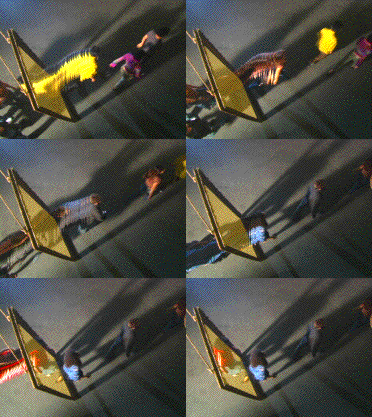

Like the Displacement Map effect, the Time Displacement effect uses a displacement map, but it bases the movement of pixels in the layer on luminance values in the map. Pixels in the layer that correspond to bright areas in the displacement map are replaced by pixels in the same position but at a specified number of seconds forward in time. Likewise, pixels in the layer that correspond to dark areas in the displacement map are replaced by pixels at a specified number of seconds backward in time. You can use any layer as a displacement map, though using a grayscale image lets you more easily see brightness levels and predict how pixels will be displaced.
The Time Displacement effect automatically replaces pixels across time without keyframes or expressions. However, you can animate other properties to vary the effect over time.
To better understand how pixels are displaced in time, think of the displacement occurring in steps, as follows:
-
After Effects overlays the displacement map layer on top of the effect layer (the layer you’re distorting). If the dimensions of the displacement map are different from those of the effect layer, you can specify whether the map is centered or stretched to fit.
-
You specify a maximum displacement amount, in seconds.
-
After Effect uses the luminance value of each pixel in the displacement map to calculate the displacement of the corresponding pixel in the effect layer, based on the maximum displacement amount.
In grayscale images, the luminance value range extends from 0 to 255, and it’s converted to a scale ranging from -1 to 1. A luminance value of 0 produces maximum backward displacement, meaning that pixels at the current time are replaced by pixels from a previous time. A luminance value of 255 produces maximum positive displacement, meaning that pixels at the current time are replaced by those at a future time. A luminance value of 128 produces no displacement. For other values in grayscale displacement maps, you can calculate the displacement amount, in seconds, using the following equation:
Displacement amount in seconds = maximum_displacement_time * (2 * (luminance_value – 128) / 256)
-
After Effects displaces each pixel in the image by replacing a pixel in the image at the current time with the pixel in the same position at another time. The other time is the displacement amount in seconds for the pixel, calculated in step 3.
Suppose you specified 2 seconds as the maximum time displacement. After Effects finds the luminance value of each pixel in the displacement map, and then it replaces the corresponding pixels at the current time with pixels from another time based on the maximum time of 2 seconds. A luminance value of 255 in the displacement map replaces that pixel with the pixel 2 seconds ahead in the same position. A luminance value of 42 replaces that pixel with the pixel 1.34 seconds behind in the same position.
- Time Displacement Layer
- Specifies the layer to use as the displacement map.
- Max Displacement Time (sec)
- Sets the maximum time, in seconds, from which pixels are replaced, before or after the current time. Note that only luminance values of 0 or 255 (maximum darkness and maximum brightness) produce the maximum time. All other luminance values produce times less than the maximum time.
- Time Resolution (fps)
- Sets the number of frames per second in which to replace pixels. Typically, this value shouldn’t be greater than the frame rate of the affected layer. Increasing Time Resolution can significantly increase rendering time.
- Stretch Map To Fit
- Resizes the Time Displacement Layer to match the dimensions of the layer you’re distorting. If this option isn’t selected, the time displacement layer is centered in the composition.
 Apply the Time Displacement effect