

About text layers
You can add text to a composition and animate the properties of entire text layers or individual characters, such as color, size, and position.
After Effects uses two kinds of text: point text and paragraph text. Point text is useful for entering a single word or a line of characters; paragraph text is useful for entering and formatting the text as one or more paragraphs.
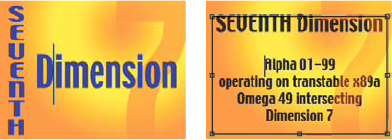
You work with text on text layers, which in many ways are like other layers in After Effects. You can apply effects and expressions to text layers, animate them, designate them as 3D layers, and edit 3D text while viewing it in multiple views. As with shape layers and other vector layers, text layers are continuously rasterized, so when you scale the layer or resize the text, it retains crisp, resolution-independent edges.
To see a video tutorial on animating text, visit the Adobe website at www.adobe.com/go/vid0226.
You cannot open a text layer in its own Layer panel. You animate text using text animator properties and selectors. 3D text layers can optionally contain 3D sublayers, one for each character. (See Animate text with text animators and Work with per-character 3D text properties.)
You can copy text from other applications such as Adobe Photoshop, Adobe Illustrator, Adobe InDesign, or any text editor, and paste it into a text layer in After Effects. Because After Effects also supports Unicode characters, you can copy and paste these characters between After Effects and any other application that also supports Unicode (which includes all Adobe applications).
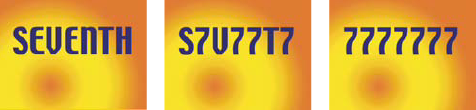
Text formatting is included in the Source Text property. Use the Source Text property to animate formatting and to change the characters themselves (for example, change the letter b to the letter c). Because you can mix and match formatting within a text layer, you can easily create animations that transform every detail of a word or phrase.
 When working with text, you may find it useful
to hide the layer controls, such as highlights and vertices, while
showing grids, guides, and safe zones. (See Show or hide layer controls in the Composition panel and Work with safe zones, grids, guides, and rulers.)
When working with text, you may find it useful
to hide the layer controls, such as highlights and vertices, while
showing grids, guides, and safe zones. (See Show or hide layer controls in the Composition panel and Work with safe zones, grids, guides, and rulers.)