

Animate text with text animators
Animating text with animators and selectors consists of three basic steps:
-
Add an animator to specify which properties to animate.
-
Use a selector to specify which characters are affected by the animator.
-
Adjust the animator properties.
Usually, you don’t need to set keyframes or expressions for the animator properties. It’s common to only set keyframes or expressions for the selector and specify only the ending values for the animator properties.
For example, to animate opacity gradually from the first character to the last, you can add an animator for Opacity, set the Opacity value (in the Animator property group) to 0, and then set keyframes for the default selector’s End property to 0% at 0 seconds and 100% at a later time.
 You may find it easier to think in terms of numbers
of characters than percentages for a range selector’s Start and
End properties. To show these properties in numbers of characters
(including spaces), choose Index for Units in the Advanced property
group of a range selector.
You may find it easier to think in terms of numbers
of characters than percentages for a range selector’s Start and
End properties. To show these properties in numbers of characters
(including spaces), choose Index for Units in the Advanced property
group of a range selector.You can create elaborate animations using several animators and several selectors, each of which adds its influence to the text animation.
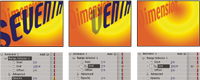
- Select a text layer in the Timeline panel, or select the specific characters that you want to animate in the Composition panel.
- Do one of the following:
-
Choose Animation > Animate Text and then choose a property from the menu.Note: The Enable Per-Character 3D menu item does not add an animator. It adds 3D properties to the layer and to the individual characters, for which you can then add animators.
-
Choose a property from the Animate menu, located in the Switches/Mode column of the Timeline panel.
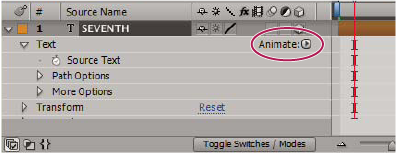 Animate menu
-
- In the Timeline panel, adjust the animator property values. Often, you simply set the property that you want to animate to its ending value and then use the selectors to control everything else.
- Expand the Range Selector property group and set keyframes
for Start or End properties by clicking the stopwatch for the property
and doing one of the following:
-
Set the values for Start and End in the Timeline panel.
-
Drag the selector bars in the Composition panel. The pointer changes to the selector movement pointer
 when
it is over the middle of a selector bar.
when
it is over the middle of a selector bar.
-
- To refine the selection, expand Advanced and specify options and values as desired.