Create and edit projects
To begin using Version Cue, you need to create a Version Cue project. When you work with Version Cue, you decide what a project entails. For example, you can create a project to organize files for an entire publishing effort, or you can create a project to manage files for specific aspects of an advertising campaign. You can use a project to organize assets related to a particular customer or use a project to separate private files from files that are worked on collaboratively. You can add files to projects at any time.
When you create a Version Cue project, you specify a project name, the Version Cue Workspace that hosts the project, and a project description. You specify whether to share the project or keep it private. Shared projects are available to other users; however, you can password-protect shared projects to restrict access to specific users. You can create private projects on a workspace installed on your computer. If you create a project on a computer that is used as a server, it must be shared to be accessible.
You can create projects by using an Adobe Creative Suite component, InCopy, Acrobat 8, or the Version Cue Administration utility. The Version Cue Administration utility provides options for specifying advanced project properties. You create new Version Cue projects with it by importing a folder of files. These files are used as the project starting point.
 Create a project
- Choose File > Open. Click Use Adobe Dialog if you’re using the OS dialog box.
- Click Version Cue in the Favorites panel.
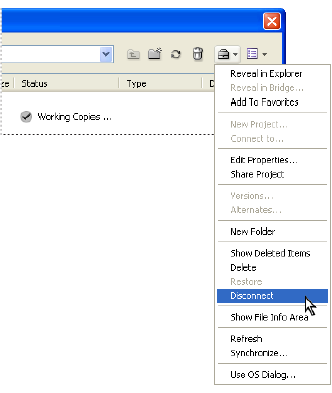
- Choose New Project from the Project Tools menu
 .
. - Choose a location for the project from the Location menu.
- Enter a name for the project in the Project Name box and a description in the Project Info box. (The description you enter appears as a tool tip when the pointer is over the project in the list of workspaces.)
- To make this project and its files available to others, select Share This Project With Others. (If the Version Cue Workspace is on a computer other than your own, the Version Cue project is shared by default.)
- Click OK.
Edit the properties of a project
- Choose File > Open. Click Use Adobe Dialog if you’re using the OS dialog box. Double-click the host Version Cue Workspace. Select the project, and then choose Edit Properties from the Project Tools menu.
- In the Edit Properties dialog box, do any of the following,
and click Save:
-
To change the project name, enter a name in the Project Name text box. The new name will not be reflected on your (or your workgroup’s) working copies project folder until you disconnect from and reconnect to the project.
-
To change the description of the project, enter text in the Project Info box.
-
To make this project and its files available to other users, select Share This Project With Others. (If the Version Cue Workspace is on a computer being used as a server, the Version Cue project is shared by default.) To unshare a shared project, deselect Share This Project With Others. Note, however, that this action does not delete any working copies currently in project folders on the workgroup’s computers.
-
To view the location of working copies on your computer, expand Local Project Files. To open the folder, choose Show Files In Explorer (Windows) or Show Files In Finder (Mac OS). To change the location of the files, click Change Location and choose the new location for working copies.Note: Make sure that you use the Change Location feature to relocate working copies, rather than moving the project folder manually in the file system.
-
Click Advanced Administration to enable lock protection, edit or assign users, or require users to log in to the project. When prompted, log in to Version Cue Administration. Depending on your privileges, this option may not be available.
-
- Click Cancel to close the Open dialog box (Version Cue saves your settings even though you clicked Cancel).