Add a sticky note
The most common type of comment is the sticky note. A sticky note has a note icon that appears on the page and a pop-up note for your text message. You can add a sticky note anywhere on the page or in the document area.
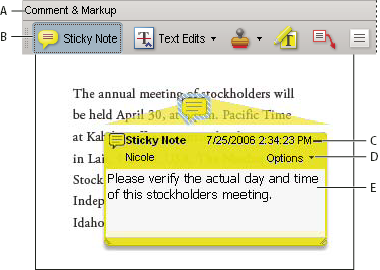
- A.
- Comment & Markup toolbar
- B.
- Sticky Note tool
- C.
- Close button
- D.
- Options menu
- E.
- Text message
 Add a sticky note comment
- Do one of the following:
-
Select the Sticky Note tool
 in
the Comment & Markup toolbar, and either click where you want
to place the note, or drag to create a custom-sized note.
in
the Comment & Markup toolbar, and either click where you want
to place the note, or drag to create a custom-sized note. -
Choose Comments > Add Sticky Note.
-
- Type text in the pop-up note. You can also use the Select
tool
 to
copy and paste text from a PDF into the note.
Note: If you close the pop-up note your text remains.
to
copy and paste text from a PDF into the note.
Note: If you close the pop-up note your text remains.
Edit a sticky note comment
-
Make
changes, as needed:
-
To resize the pop-up note, drag the lower left or lower right corner.
-
To change the text formatting, choose View > Toolbars > Properties Bar, select the text, and then select the property you want in the toolbar. Or, select the text, right-click/Control-click, and choose a text style option.
 Use the Commenting
panel in the Preferences dialog box to change the font size, default
pop-up behavior, and other settings for creating and viewing comments.
Use the Commenting
panel in the Preferences dialog box to change the font size, default
pop-up behavior, and other settings for creating and viewing comments.
When you’re finished, click the minimize button in the upper right corner of the pop-up note, or click outside the pop-up note.
-
 , or
the Select tool.
, or
the Select tool.