Change the look of your comments
You can change the color and appearance of comments or markups before or after you create them. You can set the new look as the default appearance for that tool.
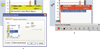
 Change a comment’s look and set
it as the default
Change a comment’s look and set
it as the default
- After you create a comment, do
one of the following:
-
Choose Properties from the Options menu of the pop-up note.
-
Right-click/Control-click the markup, and then choose Properties.
-
- In the Properties dialog box, do any of the following,
and then click Close:
-
Click the Appearance tab to change such options as the color and type of icon used. The type of comment selected determines which options are available.
-
Click the General tab to change the author’s name and subject of the comment.
-
Click the Review History tab to see the history of changes people have made to the status of a comment during a review.
-
Select Locked at the bottom of the Properties dialog box to prevent the comment from being edited or deleted.
-
Select Make Current Properties Default at the bottom of the Properties dialog box to apply these properties to all subsequent comments of this type that you make.
-