Mark up text with edits
You can use text edit comments in a PDF to indicate where text should be edited in the source file. Text edit comments do not change the actual text in the PDF. Instead, they indicate which text should be deleted, inserted, or replaced in the source file from which the PDF was created.
You can use the Select tool or the Text Edits tool to add most types of text edits. Shortly after you click or select text with the Text Edits tool, an icon appears. If you hold the pointer over this icon, a menu of text editing options appears.
In Windows, you can export text edits directly to the Microsoft Word document that the PDF is based on to revise the source document. To use this feature, you must use PDFMaker in Word to create the PDF. Before you export your text edits, make sure that insertion comments use the exact text, including spaces and paragraph returns, that you want to add. If you add extra instructional words (such as “Add the following:”), these words will have to be deleted manually from the Word document.
In Windows, you can export text edit comments directly to an Autodesk AutoCAD document that the PDF is based on to incorporate your edits. To use this feature, you must use PDFMaker in AutoCAD to create the PDF.
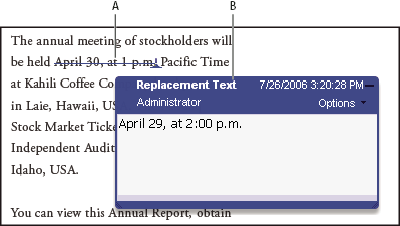
- A.
- Selected text is struck out.
- B.
- New text is added to a linked pop-up note.
 Replace text
-
Use the Select tool, or select the Text Edits
tool
 from
the Comment & Markup toolbar.
from
the Comment & Markup toolbar.
 If you don’t want the Indicating
Text Edits dialog box to appear each time you select the Text Edits
tool, select Don’t Show Again in the dialog box, and then click
OK.
If you don’t want the Indicating
Text Edits dialog box to appear each time you select the Text Edits
tool, select Don’t Show Again in the dialog box, and then click
OK. - Press Enter or Return, or choose Replace Text from the
menu that appears, and then do one of the following:
-
Type the text to be inserted or added. This text appears in a pop-up note. Any selected text is crossed out. The insertion caret
 appears.
 -
To indicate that a new paragraph should be added, close the pop-up note without adding text. The paragraph insertion caret
 appears.
-
Add a note to a text edit
Show inserted text
-
Select the Text Edits tool from
the Comment & Markup toolbar.
- Click between the words or characters where you want to insert text.
- Do any of the following:
-
Type the text you want to insert.
-
To indicate that a new paragraph should be added, press Enter or Return, and then close the pop-up note without adding text. The paragraph insertion caret
appears. -
To indicate that a space should be added, press the spacebar, and then close the pop-up note without adding text. The space insertion caret
 appears. You can also indicate text edits by using the Select
tool
appears. You can also indicate text edits by using the Select
tool  to
select text, right-click/Control-click the selected text, and then
choose Replace Text (Comment).
to
select text, right-click/Control-click the selected text, and then
choose Replace Text (Comment).
-
Delete inserted text
- On the Comment & Markup toolbar,
choose the Text Edits tool .
- Select the text, and then press Backspace or Delete, or choose the Cross Out Text from the menu.
Delete text markups
If markup comments are
stacked, delete the comments in the Comments List: Click the Comments
button in the navigation pane to open the Comments List, select the
comment, and press Delete.  Do
one of the following:
Do
one of the following:-
Select the markup and press Delete.
-
Right-click/Control-click the markup, such as the highlighting or cross-out, and then choose Delete.