View results in a list
The Preflight dialog box lists the issues flagged after an inspection that tests against the criteria specified in the selected profile.
- When the results appear, do any of the following:
-
If details are available, expand an area to see details about the problem object. Only the first few problems are listed. Your Preflight preferences determine how additional results, if any, are listed.
-
To see more information, select Show Detailed Information About Document at the bottom of the dialog box.
-
To see an object in a separate view, select Show Selected Page Object In Snap View.
-
If you switched to a different view in the Preflight dialog box, such as the Profiles list, you can get back to the Results list by clicking the Results button at the top of the dialog box, or choosing Show Most Recent Results from the Options menu.
-
To see an object in context on the PDF page, double-click the item. The object is highlighted with a dotted line for easier identification. This is useful when an object such as a font exists in multiple places in the document. In some cases, the item is an attribute of an object (for example, a color space). In those cases, the inspection finds the objects that use the attribute.
 You can change the type of line, its thickness,
and its color on the Highlighting tab of Preflight preferences.
You can change the type of line, its thickness,
and its color on the Highlighting tab of Preflight preferences.
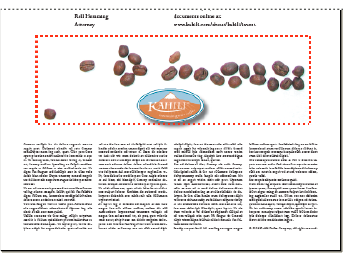 Problem object on the PDF page
-