Use Snap View to view a problem object
Use Snap View to isolate an item when you’re working with pages containing complex, overlapping areas. Some items, such as document information fields or page labels, cannot be displayed.
- In the Preflight Snap View window, choose an option from
the Background Color menu. All problem objects are displayed on
this color in Snap View.
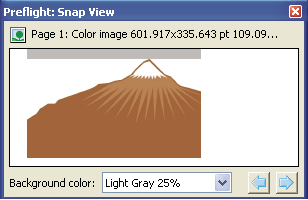 Snap view of problem object