Draw straight lines with the Pen tool
The simplest path you can draw with the Pen Tool is a straight line, made by clicking the Pen Tool to create two anchor points. Continue to click to create a path made of straight line segments connected by corner points.
-
Select the Pen Tool
 .
.
-
Continue clicking to set anchor points for additional
straight segments.
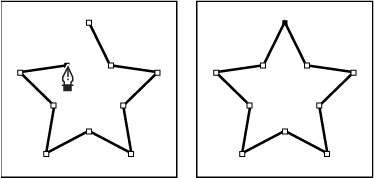 Clicking pen tool creates straight segments
-
To complete the path as an open or closed shape, do one
of the following:
-
To complete an open path, double-click the last point, click the Pen Tool in the Tools panel, or Control-click (Windows) or Command-click (Macintosh) anywhere away from the path.
-
To close the path, position the Pen Tool over the first (hollow) anchor point. A small circle appears next to the Pen Tool pointer
 when
it is positioned correctly. Click or drag to close the path.
when
it is positioned correctly. Click or drag to close the path. -
To complete the shape as is, select Edit > Deselect All, or select a different tool in the Tools panel.
-
Related Information
