Adjust anchor points on paths
When you draw a curve with the Pen tool, you create curve points—anchor points on a continuous, curved path. When you draw a straight line segment, or a straight line connected to a curved segment, you create corner points—anchor points on a straight path or at the juncture of a straight and a curved path.
By default, selected curve points appear as hollow circles, and selected corner points appear as hollow squares.
To convert segments in a line from straight segments to curve segments or the reverse, convert corner points to curve points or the reverse.
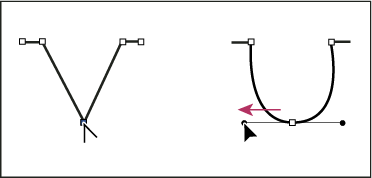
Move, add, or delete anchor points on a path. To move anchor points, use the Subselection tool to adjust the length or angle of straight segments or the slope of curved segments. Nudge selected anchor points to make small adjustments.
-
To move an anchor point, drag the point with the Subselection tool
 .
. -
To nudge an anchor point or points, select the point or points with the Subselection tool and use the arrow keys to move the point or points. Shift-click to select multiple points.
-
To convert a corner point to a curve point, use the Subselection tool to select the point, then Alt‑drag (Windows) or Option-drag (Macintosh) the point to place the tangent handles.
-
To convert a curve point to a corner point, click the point with the Pen tool. The carat ^ marker next to the pointer
 indicates
when it is over the curve point.
indicates
when it is over the curve point. -
To add an anchor point, click a line segment with the Pen tool. A plus (+) sign appears next to the Pen tool
 if
an anchor point can be added to the selected line segment. If the
line segment is not yet selected, click it with the Pen tool to
select it, and then add an anchor point.
if
an anchor point can be added to the selected line segment. If the
line segment is not yet selected, click it with the Pen tool to
select it, and then add an anchor point. -
To delete a corner point, click the point once with the Pen tool. A minus (-) sign appears next to the Pen tool if an anchor point can be deleted from the selected line segment. If the line segment is not yet selected, click it with the Pen tool to select it, and then delete the anchor point.
-
To delete a curve point, click the point once with the Pen tool. A minus (-) sign appears next to the Pen tool if an anchor point can be deleted from the selected line segment. If the line segment is not yet selected, click it with the Pen tool to select it, and then delete the corner point. (Click once to convert the point to a corner point, and once more to delete the point.)
-
Select the point with the Subselection tool and press Delete.
