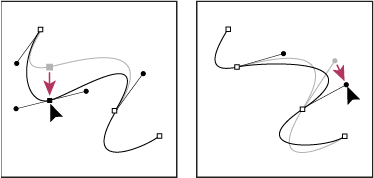
Adjust segments
To change the angle or length of the segment, or adjust curved segments to change the slope or direction of the curve, adjust straight segments.
-
To adjust a straight segment, select the Subselection tool
 , and
select a straight segment. Use the Subselection tool to drag an
anchor point on the segment to a new position.
, and
select a straight segment. Use the Subselection tool to drag an
anchor point on the segment to a new position. -
To adjust a curve segment, select the Subselection tool and drag the segment.
Note: When you click the path, Flash shows the anchor points. Adjusting a segment with the Subselection tool can add points to the path. -
To adjust points or tangent handles on a curve, select the Subselection tool, and select an anchor point on a curved segment.
-
To adjust the shape of the curve on either side of the anchor point, drag the anchor point, or drag the tangent handle. To constrain the curve to multiples of 45º, shift-drag. To drag tangent handles individually, Alt‑drag (Windows) or Option-drag (Macintosh).