Using ActionScript 2.0 Components 


Using ActionScript 2.0 Components |
|
|
|
| Working with Components > Adding components to Flash documents | |||
|
|||
|
|||
|
|||
When you drag a component from the Components panel to the Stage, a compiled clip (SWC) symbol is added to the Library panel. After a SWC symbol is added to the library, you can drag multiple instances to the Stage. You can also add that component to a document at runtime by using the UIObject.createClassObject() ActionScript method. For more information, see the ActionScript 2.0 Components Language Reference.
|
NOTE |
The Menu and Alert components are two exceptions, and cannot be instantiated using |
You can add a component to a document by using the Components panel, and then add additional instances of the component to the document by dragging the component from the Library panel to the Stage. You can set properties for additional instances in the Parameters tab of the Property inspector or in the Parameters tab in the Component inspector.
 To add a component to a Flash document by using the Components panel:
(Select File > Publish Settings > Flash tab and select ActionScript 2.0 in the ActionScript dropdown menu.)
The following illustration shows the Property inspector for the TextInput component that is in the TipCalculator.fla sample file. To access the TipCalculator.fla sample file, see the Flash Samples pages at www.adobe.com/go/learn_fl_samples.
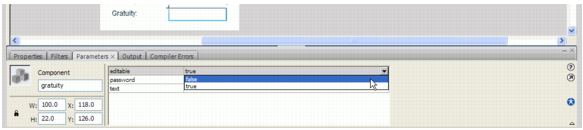
For more information, see Setting component parameters.
For more information on sizing specific component types, see the individual component entries in ActionScript 2.0 Components Language Reference.
setStyle() method, which is available to all components. For more information, see UIObject.setStyle() in the ActionScript 2.0 Components Language Reference.For more information, see Using styles to customize component color and text.
The instructions in this section assume an intermediate or advanced knowledge of ActionScript.
Use the createClassObject() method (which most components inherit from the UIObject class) to add components to a Flash application dynamically. For example, you could add components that create a page layout based on user-set preferences (as on the home page of a web portal).
Version 2 components that are installed with Flash reside in package directories. (For more information, see About packages in Learning ActionScript 2.0 in Adobe Flash. If you add a component to the Stage during authoring, you can refer to the component simply by using its instance name (for example, myButton). However, if you add a component to an application with ActionScript (at runtime), you must either specify its fully qualified class name (for example, mx.controls.Button) or import the package by using the import statement.
For example, to write ActionScript code that refers to an Alert component, you can use the import statement to reference the class, as follows:
import mx.controls.Alert;
Alert.show("The connection has failed", "Error");
Alternatively, you can use the full package path, as follows:
mx.controls.Alert.show("The connection has failed", "Error");
For more information, see About importing class files in Learning ActionScript 2.0 in Adobe Flash.
You can use ActionScript methods to set additional parameters for dynamically added components. For more information, see ActionScript 2.0 Components Language Reference.
|
NOTE |
To add a component to a document at runtime, it must be in the library when the SWF file is compiled. To add a component to the library, drag the component icon from the Components panel to the library. Furthermore, if you are loading a movie clip containing a dynamically instantiated (using ActionScript) component into another movie clip, the parent movie clip must have the component in the library when the SWF file is compiled. |
To add a component to your Flash document using ActionScript:|
NOTE |
Components are set to Export in First Frame by default (right-click for Windows, or control-click for Macintosh, and select the Linkage menu option to see the Export in First Frame setting). If you want to use a preloader for an application containing components, you need to change the export frame, see Using a preloader with components for instructions. |
createClassObject() to create the component instance at runtime.
This method can be called on its own, or from any component instance. The createClassObject() method takes the following parameters: a component class name, an instance name for the new instance, a depth, and an optional initialization object that you can use to set properties at runtime.
You can specify the class package in the class name parameter, as in the following example:
createClassObject(mx.controls.CheckBox, "cb", 5, {label:"Check Me"});
Alternatively, you can import the class package, as in the following example:
import mx.controls.CheckBox;
createClassObject(CheckBox, "cb", 5, {label:"Check Me"});
For more information, see Handling Component Events and the UIObject.createClassObject() in ActionScript 2.0 Components Language Reference.
|
|||
|
|||
|
|||
|
|
|
|