Getting Started with Flash Lite 1.x 


Getting Started with Flash Lite 1.x |
|
||
| Creating a Flash Lite Application > Creating the application > Creating the specials screen > Adding navigation and text to the specials screen | |||
|
|||
|
|||
|
|||
In this section, you'll add interactivity to the specials screen that lets the user control the transition between each animation. You'll also add dynamic text fields that display the name and description of each image.
 To add text to display the names and descriptions of the specials:
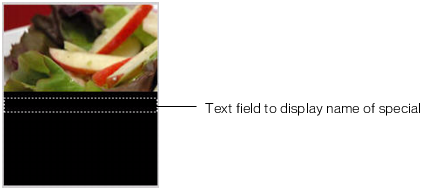
This text field will display the name of the special whose image is currently being displayed.
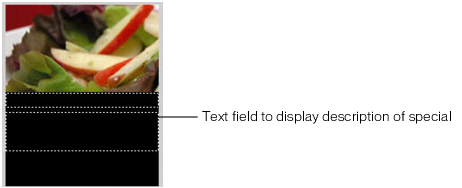
title = "Summer salad";
description = "Butter lettuce with apples, blood orange segments, gorgonzola, and raspberry vinaigrette.";
fscommand2("SetSoftKeys", "Home", "Next");
stop();
This code displays the name and description of the special that the user is currently viewing, and stops the playhead. The SetSoftKeys command registers the device's soft keys that will let the user return to the home screen, as well as navigate between specials.
title = "Chinese Noodle Salad";
description = "Rice noodles with garlic sauce, shitake mushrooms, scallions, and bok choy.";
stop();
title = "Seared Salmon";
description = "Filet of wild salmon with caramelized onions, new potatoes, and caper and tomato salsa.";
stop();
title = "New York Cheesecake";
description = "Creamy traditional cheesecake served with chocolate sauce and strawberries.";
stop();
gotoAndStop("specials");
This code returns the playhead to the beginning of the animation sequence. The first and last images in the animation sequence are the same, which creates the illusion of a continuous animation.
Next you'll add navigation to the specials screen that lets the user navigate between images and descriptions of each special.
To add navigation to the specials screen:The Stage in your application should look something like the following screen shot:
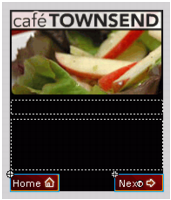
|
NOTE |
To view the work area, in Flash choose View > Work Area. |
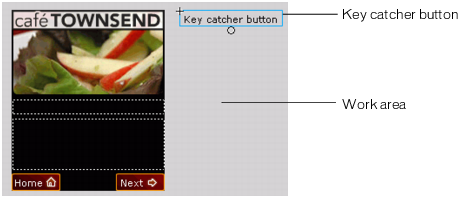
The purpose of this button is to "catch" ActionScript keypress events initiated by the user, and then take the appropriate action. For more information about using key catcher buttons, see Creating a key catcher button in Developing Flash Lite 1.x Applications.
// Handle right soft key event ("Next" button):
on(keyPress "<PageDown>") {
    play();
}
// Handle left soft key event ("Home" button):
on(keyPress "<PageUp>") {
    gotoAndStop("main");
}
The first on(keyPress) handler advances the image animation to the next image in the sequence; the second one sends the playhead to the main application screen.
|
|||
|
|||
|
|||
|
|
||