Developing Flash Lite 1.x Applications 


Developing Flash Lite 1.x Applications |
|
|
|
| Working with Text and Fonts > Font rendering methods in Flash Lite | |||
|
|||
|
|||
|
|||
Flash Lite can render text field fonts in any of the following ways:
Use fonts that are available on the device You can apply a font to a text field that you know is available on the device, or you specify one of the three generic device fonts (_sans, _serif, or _typewriter) that are available in the Font pop-up menu. If you select a generic device font, Flash Lite tries to match the selected generic font to a font on the device (for example, _sans is mapped to a sans serif font, if available) at runtime.
Render the font as a bitmap Flash Lite renders bitmap text by aligning font outlines to pixel boundaries, which makes text readable at small point sizes (such as 10 points or smaller). This option requires that you include font outlines in the published SWF file for the selected font (for more information, see Embedding font outlines in SWF files).
Render the font as anti-aliased vectors Flash Lite renders anti-aliased text using vector-based representations of font outlines, which you embed in the published SWF file (for more information, see Embedding font outlines in SWF files).
You select a font rendering method for a text field using the Font Rendering Method pop-up menu located in the Property inspector. The Font Rendering Method pop-up menu contains five rendering options; however, only three of those are available to Flash Lite 1.0 and 1.1 developers. The other two methods (Anti-Alias for Readability and Custom Anti-Alias) are only available to applications that are targeting Flash Player 8 or later.
 To select a font rendering method for a text field: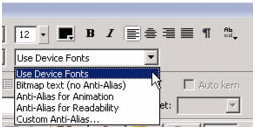
Flash Lite 1.0 and 1.1 do not support the Anti-Alias for Readability or Custom Anti-Alias font rendering options. Those rendering options are available only in Flash Player 8 and later on desktop computers.
|
|||
|
|||
|
|||
|
|
|
|