

Play a video directly from the library
- In Flash, create a new document from the Flash Lite 2.0 Symbian Series 60 template, and save it as library_video.fla.
- Import the video file named ocean.3gp located at www.adobe.com/go/learn_flt_samples_and_tutorials. On the Samples and Tutorials page, locate, download and decompress the ZIP file for your Flash Lite version, and then navigate to the Samples folder to access the file.
For more information about importing device video, see Import a device video by using the Import Video wizard.
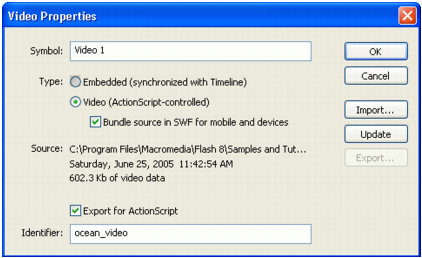
- Right-click (Windows) or Control-click (Macintosh) the ocean.3gp video symbol in the library and choose Properties from the context menu. The Video Properties dialog box appears.
- In the Video Properties dialog box, select Export For ActionScript and type ocean_video in the Identifier text box, as the following image shows:
- Click OK to close the Video Properties dialog box.
- To create the placeholder video clip, do the following:
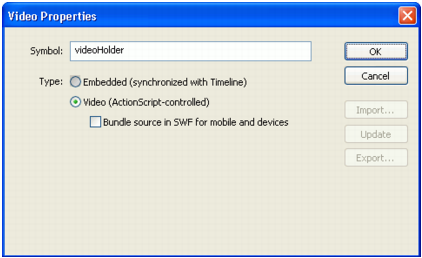
- In the Library panel, click the options menu button in the panel's title bar and select New Video. The Video Properties dialog box appears.
- In the Symbol text box, type videoHolder.
- Click OK to close the Video Properties dialog box.
- In the Timeline, select the layer named Content, then drag an instance of the videoHolder symbol to the Stage.
- In the Property inspector, type myVideo in the Instance Name text box.
- To add buttons to control the video, open the library of prebuilt buttons (Window > Common Libraries > Buttons).
- In the Buttons library, double-click the Circle Buttons folder to open it.
- Drag an instance of the Play button symbol from the Buttons library to the Stage.
- Drag an instance of the Stop button symbol from the Buttons library to the Stage.
- Select the Play button on the Stage and open the Actions panel (Window > Actions).
- Type (or copy and paste) the following code into the Actions panel:
on(press) { myVideo.play("symbol://ocean_video"); } - Select the Stop button on the Stage and type the following code in the Actions panel:
on(press) { myVideo.stop(); } - Publish the SWF file (File > Publish) and transfer it to your device for testing.
NOTE
You should test device video on the target device; not all formats are supported by the emulator.