

Enable the 8 kHz sampling rate feature globally for all native sounds
- In Flash, select File > Publish Settings.
- In the Publish Settings dialog box, click the Flash tab.
- To enable the 8 kHz sampling rate for all stream sounds in your application, do the following:
- Click Set Stream sound options.
- In the Sound Properties dialog box that appears, select MP3 from the Compression pop-up menu.
The 8 kHz sampling feature is available only for MP3-compressed audio.
- Select the Use 8kHz Sample Rate option.
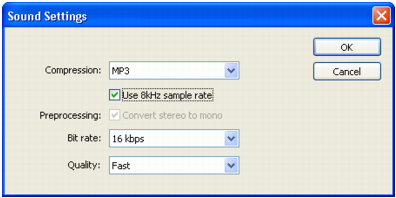
- Click OK to close the Publish Settings dialog box.
- To enable the 8 kHz sampling rate for all event sounds, do the following:
- Click Set Event Sound Options.
- In the Sound Properties dialog box that appears, select MP3 from the Compression pop-up menu.
NOTE
The 8 kHz sampling feature is available only for MP3-compressed audio.
- Select the Use 8kHz Sample Rate option.
- Click OK.
- Click OK to close the Publish Settings dialog box.