Using inline text input (Flash Lite 2.1 and later)
Flash Lite 2.1 and later supports inline text input, which allows users to enter and edit text directly in an input text field. While entering text in a Flash Lite application, users interact with the device's native input method editor (IME)--the Flash Lite player does not process the user input itself.
|
NOTE |
|
The Flash Lite emulator on Adobe Device Central does not show inline text. For more information, see "Testing inline text in Flash Lite 2.1" on page 122. |
While an input text field is active, the Flash Lite 2.1 and 3.0 player runs in restricted mode. In this mode, the device's native IME handles all keypress events, and no ActionScript is processed. In addition, all animation, sound, and stop-video-playing events are ignored. After a text field is deactivated, Flash Lite resumes normal operating mode.
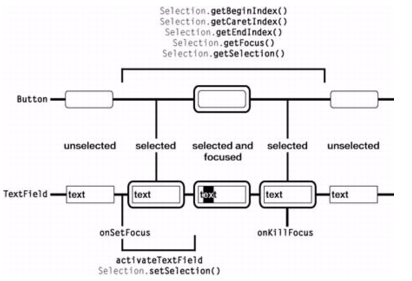
Before a text field can accept text input from a user, it must be activated. A user can activate an input text field by giving it selection focus and then either pressing the device's select key or pressing a soft key for which the application sets the text entry to the focused state. (For details about activating a text field, see "Activating input text fields with ActionScript" on page 38.)
The following figure shows the different states of an input text field: not selected, selected (but not activated), and activated: