

Create a button event handler
- Create a new document from the Flash Lite 2.0 template that you created in "Creating a Flash Lite document template" in Getting Started with Flash Lite 2.x and 3.0, and save it as custom_focus_manager.fla.
- Select Window > Common Libraries > Buttons to open an external library of prebuilt button symbols.
- In the Library panel, double-click the classic buttons folder to open it, and then open the Circle Buttons folder.
- Drag an instance of the Menu button symbol to the Stage.
- In the Property inspector, in the Instance Name text box, type btn_1.
- Drag another instance of the same button to the Stage and position it directly below the first button.
- In the Property inspector, in the Instance Name text box, type btn_2.
- In the Timeline, select Frame 1 in the layer named ActionScript.
- Open the Actions panel (Window > Actions) and enter the following code:
// Disable the focus rectangle because buttons have an over state _focusRect = false; // Event handlers for btn_1 btn_1.onPress = function() { trace("You pressed Button 1"); } btn_1.onRelease = function() { trace("You released Button 1"); } btn_1.onRollOver = function() { trace("Button 1 has focus"); } btn_1.onRollOut = function() { trace("Button 1 lost focus"); } // Event handlers for btn_2 btn_2.onPress = function() { trace("You pressed Button 2"); } btn_2.onRelease = function() { trace("You released Button 2"); } btn_2.onRollOver = function() { trace("Button 2 has focus"); } btn_2.onRollOut = function() { trace("Button 2 lost focus"); } - Test the application in the emulator (Control > Test Movie).
Watch the messages in the Output panel as you press the up and down arrow keys on the emulator's keypad.
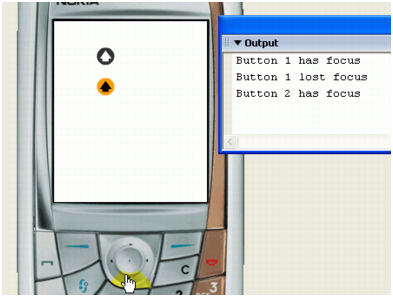
Other types of objects support different events; for example, the TextField object includes an onChanged event that is invoked when the content of a text field changes. You can write event handler code for these events using the same format as the button event handlers in this procedure. For more information about the events supported for text fields and movie clips, see the TextField and MovieClip entries in the Flash Lite 2.x and 3.0 ActionScript Language Reference.