Default navigation modes
Flash Lite supports three modes of default navigation: two-way, four-way, and four-way with wraparound. Different devices and Flash Lite content types support different navigation modes. For information on determining the navigation mode for a specific device and content type, see Playing a device video in the emulator.
Two-way navigation in Flash Lite is analogous to tab navigation in Flash desktop applications, where the Tab and Shift+Tab keys navigate among objects on the screen. The down navigation key on the device corresponds to the Tab key, and the up navigation key corresponds to the Shift+Tab key.
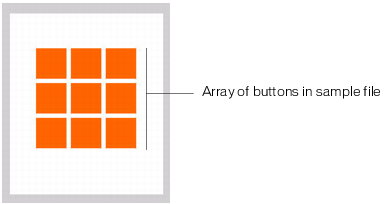
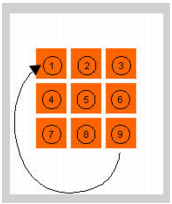
The default tab order in two-way navigation is generally left-to-right and top-to-bottom. For example, the following image shows a three-by-three grid of Button objects in a Flash Lite application. The numbers above each button indicate the order in which each button's will get keypad focus as the user presses the device's down navigation key repeatedly. After the button in the bottom-right corner has received keypad focus, the focus "wraps around" to the top-left button the next time the user presses the down navigation key.
You can customize the tab order in two-way navigation using the tabIndex property of the Button, MovieClip, and TextField objects. For more information, see Controlling tab order in two-way navigation.
For an example of two-way navigation, see the Flash Lite Samples and Tutorials page at www.adobe.com/go/learn_flt_samples_and_tutorials. Locate the .zip file for your version of ActionScript, download and decompress the .zip file, and then navigate to the Samples folder to access the sample file named 2-way.fla.
Four-way navigation in Flash Lite is similar to using the arrow keys on a desktop computer's keyboard to navigate among objects on the screen. The device's up, down, left, and right navigation keys correspond to the four arrow keys on a computer's keyboard. Pressing a navigation key moves the keypad focus to the object located in that direction, if one exists. If no object exists in that direction, then the keypad focus does not change from the current object.
|
NOTE |
|
The tabIndex property is not supported on devices that support four-way navigation, but tabEnabled and tabChildren are, which is different from how these properties work in Flash desktop applications. |
For an example that uses four-way navigation, see the Flash Lite Samples and Tutorials page at www.adobe.com/go/learn_flt_samples_and_tutorials. Locate the .zip file for your version of ActionScript, download and decompress the .zip file, and then navigate to the Samples folder to access the sample file named 4-way.fla.
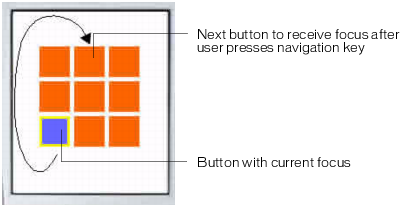
Four-way navigation with wraparound functions like a combination of standard four-way navigation and two-way navigation. Like standard four-way navigation described previously, users change keypad focus using the device's four-way navigation keys. The difference is that, similar to two-way navigation, keypad focus "wraps around" to the object on the opposite side of the screen. For example, in the image below, the button with the current keypad focus is located at the bottom-left corner of the screen. If the user presses the down navigation key, the next button to receive focus is located in the middle of the top row of buttons.
You can test the behavior of two-way and four-way navigation modes in the Adobe Device Central emulator using the samples named 2-way.fla and 4-way.fla located at www.adobe.com/go/learn_flt_samples_and_tutorials. On the Samples and Tutorials page, locate, download and decompress the .zip file for your Flash Lite version, and then navigate to the Samples folder to access the samples. Each sample file consists of the same three-by-three grid of buttons, as discussed previously. The only difference between the sample files is that each FLA file is configured to target a combination of device and Flash Lite content type that supports the navigation mode (two-way or four-way).
To use each sample file, open it in Flash and test it in the Adobe Device Central emulator (select Control > Test Movie). Click the arrow keys on the emulator's keypad (or press the arrow keys on your keyboard) to see how each navigation mode affects user navigation.