|
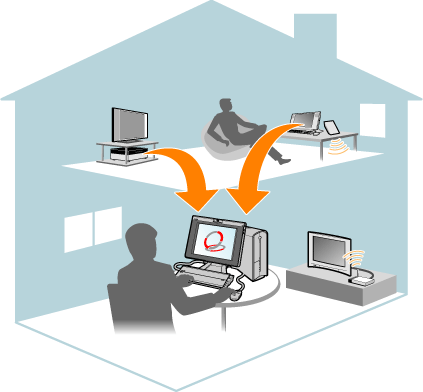
This section explains how VAIO Media is used to enjoy listening to music, viewing photos, watching recorded video and Live Television* on your computer.
|
* |
The television function may not be available in some countries or regions.
|
Introduction
VAIO Media is a home networking application that allows you to enjoy media stored on other computers across your network. The computer containing this media is called a server. The computer using VAIO Media to access content from that server is called a client.
 Hint Even with only one computer (the computer acts as server and client), you can still enjoy your favorite media.
The media content that you can enjoy with VAIO Media is stored on the server. There are various ways to store the content but that depends on the type of media (music, photo, video).
VAIO Media has included a file that allows you to install the application on client computers on your network. This file is called the VAIO Media Installer. Once installed to clients computers on your network, you can begin streaming content from the server on your network.
Building a Network
To access media on your computer from another computer, it is necessary to build a network.
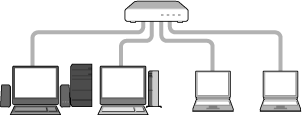
In a wired LAN configuration, the clients and server are connected to a switching hub through Ethernet cables.
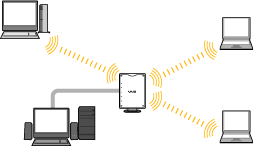
In a wireless LAN configuration, the clients and server are connected with the wireless access point through wireless connections. However, you may still connect some computers to the wireless access point with Ethernet cables, if desired.
In order to play back media files stored on the server from a client computer, you must configure the necessary server settings. When setting up the server, use VAIO Media Server Settings, the management software installed on the server.
To set up the server, perform the following operation.
To make these settings, you must log on to the server with the Administrator account or a user account with administrator privileges. For details, see " Precautions and Limitations".
|
1. |
Click "Start", point to "All Programs", open "VAIO Media" and the "Servers" folder, and then click "VAIO Media Server Settings"
VAIO Media Server Settings starts. |
|
2. |
Click the "Access Control Settings" page, and select "Make it possible for other devices on your network to access this computer"
A warning message appears. |
|
3. |
After reading the message, click "OK". |
Performing the above operation registers devices to access the server.
By selecting the check box next to "Make it possible for other devices on your network to access this computer", clients on the same network are registered to access the server. However, you must perform the following operation to enable client computers to actually connect to the server and play back the media files stored on it.
To make these settings, you must log on to the server and client with the Administrator account or a user account with administrator privileges. For details, see " Precautions and Limitations".
|
Verify the following before proceeding:
- Write down the server's computer name. In VAIO Media, computer names are used to distinguish between server and client computers.
To find the computer name, click "Start", right click on "My Computer", and select "Properties" from the menu that appears. The "Full computer name" under "Computer name" is the name given to that computer.
- Start VAIO Media Server Settings on the server. Click "Start", point to "All Programs", open "VAIO Media" and the "Servers" folder, and then click "VAIO Media Server Settings".
- Verify the following settings on the "Access Control Settings" page for VAIO Media Server Settings. The settings below are recommended.
- "Make it possible for other devices on your network to access this computer" : Yes (Selected)
- "Automatically allow new devices to connect" : No (Not selected)
- "Display a message when a new device attempts to access this computer" : Yes (Selected)
|
Operations on the client computer:
|
1. |
Click "Start", point to "All Programs", open "VAIO Media" and then click "VAIO Media".
VAIO Media starts. |
|
2. |
Click any type of media file.
A list of servers appears, and the computer name you wrote down for your server appears in gray. At this point, a message balloon also appears on the VAIO Media Server Settings icon in the system tray. You can now go on to the "Operations on the server" procedure below. |
Operations on the server:
|
3. |
Click the message balloon displayed in the system tray.
A dialog box appears for you to specify whether to grant access permission to the client. |
|
4. |
Click the "Allow" button.
This enables the client to connect to the server and play back media files stored on it. This client is now added to the "Devices on the network" list on the "Access Control Settings" page in VAIO Media Server Settings as a device with access permission.
Up to 20 clients with access permission and up to 16 clients awaiting access permission can be registered to a single server.
 Hint If you click Cancel in the message balloon, the client is added to the "Devices on the network" list on the "Access Control Settings" page in VAIO Media Server Settings as a device awaiting access permission. To play back media files on the server with this device, select it in the "Devices on the network" list, and click "Allow".
|
|
Protecting the media files stored on the server
If your server is connected directly to the Internet (not through a router) or you are connected to an intranet (such as in a condominium) that can readily be accessed by third parties, clients could be registered automatically to the server without your knowledge, allowing them access to your media files. To ensure that only specific devices can enjoy the media files on your server, you should normally set all other client devices to "Waiting" for access permission.
To set a client so it is awaiting access permission, select the device's name in the "Devices on the network" list in the "Access Control Settings" page of VAIO Media Server Settings, and then click "Do not Allow".
|
- Device registration can be performed from a computer connected to the network on the same segment as the server.
- If a client computer is equipped with multiple network interfaces (for example, a computer equipped with Ethernet and a wireless LAN) deactivate all network interfaces except the one that you want to use before registering the client. If there are several active network interfaces when you register the client, registration fails.
- If you plan to use VAIO Media through several interfaces, you must register the client through each network interface separately.
- When the client network interface changes, it is necessary to register the client again.
- Depending on how devices are registered, up to 20 client devices can be registered to a single server. The number of allowed devices is displayed by "Allowed devices" above the "Devices on the network" list in the "Access Control Settings" page of VAIO Media Server Settings.
Operations on the client computer:
 |
On the client computer click Start, point to All Programs, VAIO Media, and then click VAIO Media. |
|
|
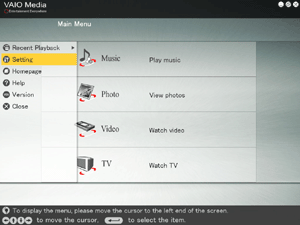
The VAIO Media main menu appears.
You must log on to the client with administrator access privileges to perform this procedure. For details, see " Precautions and Limitations". |
 |
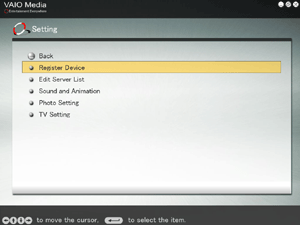
Point to the left edge of the window, and then click Setting on the menu that appears.
|
|
|
The display changes as follows.
|
 |
Click Register Device. |
|
|
The VAIO Media Registration screen appears.
|
 |
Click Start. |
Operations on the server:
 |
On the server computer click Start, point to All Programs, VAIO Media, Server Administration, and then click VAIO Media Server Settings. |
|
|
The VAIO Media Server Settings dialog box appears.
You must log on to the server as a user with administrator access privileges to perform this procedure. For details, see " Precautions and Limitations". |
 |
On the "Access Control Settings" page, confirm that the "Make it possible for other devices on your network to access this computer" check box is selected. |
 |
Under Access Control Settings, click Register. |
|
|
The device registration wizard starts.
|
 |
Specify the registration method. |
|
|
Select one of the following.
- Normally, you should select the "Automatically register devices when connected to the network" option. Selecting this option, and then selecting the "Use the confirmation number to register your device" check box ensures the most secure registration possible.
- You can register clients by using the MAC address of their network interface. If you choose to do so, select the "Manually register the device by entering the MAC address" option. Use this registration method when you cannot use the method above.
|
 |
Click Next and follow the instructions on the screen to complete the client registration. |
|
|
You must verify the screens of both the client and the server. |
When using a firewall function
VAIO Media may not operate correctly on computers running the firewall function on Windows Vista or Windows XP or using commercial firewall software. To use VAIO Media with these computers, you must set them to allow client-server connections.
|
|
|