| Copy a disc using one drive |
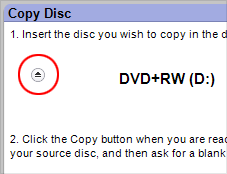
Clicking the circled button will
open or close most motorized drive trays. |
There's more
to a disc than the songs and files that show up in a directory window.
Many discs contain invisible files and special formatting that must be
duplicated perfectly if a copy is to work as expected. For the best possible
results, use the Copy Disc project.
The steps below describe how to copy a
disc using one drive. Click here to learn
how to copy a disc using two drives.
|
- To successfully copy a disc, your hard drive must have
enough space available to store a temporary copy of the disc.
- The Disc Copy project can be used to copy almost any
unencrypted disc. Commercial movie discs cannot be copied.
- For best results, select a target disc that is the same
size and format as the source disc.
- During a normal copy project, an attempt is made to correct
any disc errors that are found. You also have the option to copy discs
using RAW mode. In RAW mode, no attempt is made to correct errors.
|
To copy a disc using one drive:
- Click on the Copy tab in the project
list. A list of projects is displayed.
- Click on the Copy Disc project name.
- Insert the disc you would like to copy into your recorder
drive.
- Select the drive from the drive menu. If you only have
one drive, it will be automatically selected.
- Click on the action button. A temporary copy of your
disc will be created and stored on your hard drive.
- Insert a blank or rewritable disc when prompted. A copy
of your source disc will be created.
|






