| Copy a disc using two drives |
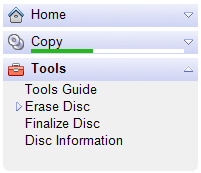
If you change project tabs while
copying a disc, a progress indicator appears on the Copy tab. If your
attention is required to complete the project, the tab will flash. |
Would you
like to make copies even faster? You can if your computer is equipped
with a disc recorder and a second disc drive. A two-drive system gives
you the option to copy one disc directly to another without storing a
large temporary file on your hard drive.
|
- Direct disc-to-disc copies can fail for a variety of
reasons: drive compatibility, drive speed issues, disc speed issues,
etc. If you experience problems, try the following suggestions:
- Use the speed settings on the General
> Advanced options panel to reduce the recording
speed of your faster drive. (Advanced options are not available
with all versions of this product.)
- Make sure the discs you are using are compatible
with your recorder drive.
- If possible, use a different combination
of source and destination drives.
- Direct disc-to-disc copies cannot be created if the Stage
to hard drive for better quality option is selected on the Copy options
panel.
|
To copy a disc using two drives:
- Click on the Copy tab.
- From the list of copy projects, click on the Copy
Disc link.
- Select a source drive from the first drop-down list and
insert the disc you wish to copy into the drive.
- Select a destination drive from the second drop-down
list. Insert a blank or rewritable disc.
- Click on the action button to begin recording.
|






