| Copy a DVD movie |
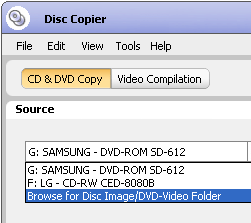
To copy a movie from your hard drive,
choose Browse for disc image/DVD-Folder. |
Unencrypted
movies can be copied from a disc or from a hard drive. This topic describes
how to copy movies using the Disc Copier component of your digital media
suite.
To open Disc Copier, click on the Copy
tab in the project launcher and click on the Copy DVD Movies
project name.
|
- Most commercial DVD movies are encrypted and cannot be
copied using Disc Copier.
- If your DVD-Video source files are greater than 4.7 GB
in size, the files will be compressed to fit on a standard 4.7 GB DVD
disc. Any DVD-ROM content is not copied.
- Some unencrypted movie discs can also be copied using
the Copy Disc project in Roxio Home. However, the Copy Disc project
does not compress files. Click here to
learn more.
- Here's a quick way to copy a disc or disc image file.
In Windows Explorer, right-click on the drive letter of the recorder
that contains the disc or on the name of the disc image file. Choose
Copy with Disc Copier from the shortcut menu.
|
To copy a movie from a disc:
- Open Disc Copier by clicking on the Copy DVD
Movies project under the Copy tab.
- Insert the movie disc into your source drive, then select
the drive from the Source drop-down list in Disc Copier.
- Select the drive containing the destination disc from
the Output drop-down list. If you have only one recorder, the drive
is selected by default.
- Click on the Burn button.
To copy a movie from a hard drive:
- Open Disc Copier by clicking on the Copy DVD
Movies project under the Copy tab.
- Select Browse for Disc Image/DVD-Video Folder
from the Source drop-down list in Disc Copier.
- Use the Media Selector window to navigate to the image
file or Video-TS folder you wish to copy.
- Insert a blank or rewritable disc into the destination
drive, and select the drive from the Output drop-down list.
- Click on the Copy/Save As button.
|






