

Work with bins
These are the default behaviors of bins. You can change the last three bin default behaviors by editing bin preferences.
-
To
add a bin, click the New Bin button
 at
the bottom of the Project panel.
at
the bottom of the Project panel. - To delete one or more bins, select the bins and click
the Delete icon
 at
the bottom of the Project panel.
at
the bottom of the Project panel.
 If you click New Bin multiple times in
a row, each new bin is nested inside the previous new bin.
If you click New Bin multiple times in
a row, each new bin is nested inside the previous new bin. - To show the contents of an enclosing (parent) bin when
you’re viewing only the contents of a nested bin, click the Parent
Bin button
 in
the Project panel. You can continue to click this button until the
top‑level contents of the Project panel appear.
in
the Project panel. You can continue to click this button until the
top‑level contents of the Project panel appear.
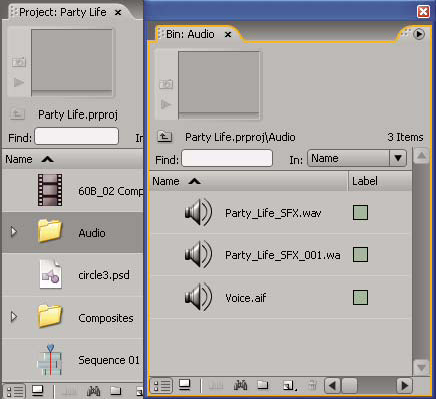
Double-click to open a bin in its own dockable panel.