PremierePro

Export a Clip Notes PDF

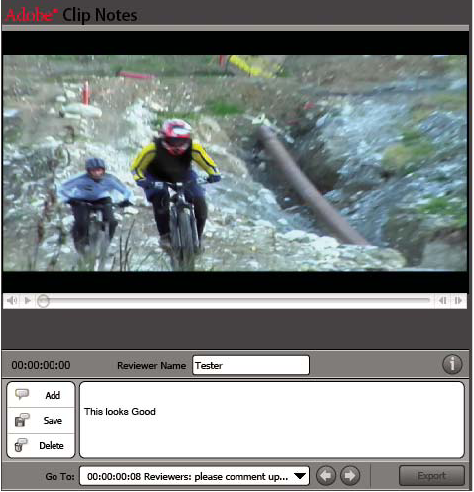
You can export your movie in a PDF file for comments from your collaborators, using Clip Notes. For a video on using Clip Notes, see www.adobe.com/go/vid0254.
  1. Select a sequence in the Timeline panel and choose File > Export > Adobe Clip Notes.
  2. In the Export Settings area, specify the following options:
    Format
    QuickTime or Windows Media (Windows only) file.
    Note: QuickTime format will allow any marker comments you make in Adobe Premiere Pro to appear at their respective frames in the player embedded in the Clip Notes PDF.

    Range
    Export the entire sequence or only the frames under the work area bar.

    Preset
    Based on broadcast standard, data rate, aspect ratio, and quality.

  3. Under PDF Settings, choose one of the following Video Options:
    Embed Video
    Embeds the rendered sequence into the PDF file, typically for e‑mail distribution to reviewers.

    Stream Video
    Posts the rendered sequence to an FTP (File Transfer Protocol) server and includes a link to the movie in the PDF. The size of the PDF is smaller than it would be if you embedded the movie, but you and your reviewers must have access to an FTP server that is also a web server.

    Note: Embedding the video results in a larger PDF file, but ensures that the reviewers will be able to view the file regardless of their access to a server. Streaming the video results in a smaller PDF file, but requires that the reviewer has access to the server where you store the video.
  4. Specify any of the following options:
    PDF Password
    Requires the reviewer to enter the password to open the PDF file.

    Instructions
    Add your specific instructions to reviewers to the generic ones provided in this field. These instructions appear when a reviewer opens the Clip Notes PDF file.

    Return Comments To
    E‑mail address to which reviewers’ comments are sent upon export. (See Add Clip Notes comments.)

  5. If you chose Stream Video in step 3, specify the following options:
    Streaming Settings
    Specifies the web URL where the video file (QuickTime or Windows Media) will be stored.

    Confirm URL Later
    Allows you to specify or confirm a URL for the server later. Adobe Premiere Pro prompts you for a valid URL just prior to creating the Clip Notes PDF file.

    FTP File To Server
    Select this option and specify settings to upload the rendered file to a server using FTP (file transfer protocol). You may need to consult your network administrator for the correct settings.

  6. Click OK to export a PDF file for Clip Notes comments.

Adobe Clip Notes PDF file as it appears in Adobe Reader