

About batch capturing
Adobe Premiere Pro supports batch capturing—automatic, unattended capture of multiple clips from a controllable device. You can define a batch by selecting a group of clips you have logged. These appear as offline (placeholder) clips in the Project panel or in a bin. You can capture any number of logged, offline clips by selecting them and choosing File > Batch Capture. When you begin capture, Adobe Premiere Pro automatically re‑sorts entries by tape name and timecode In points so that they’re captured as efficiently as possible.
To save time by reducing the number of clips you log manually, consider using Scene Detect. See Use automatic scene detection.
When you want to batch capture a set of logged (offline) clips, select them in the Project panel and choose File > Batch Capture. If you organized offline clips into bins, you can batch capture an entire bin by selecting the bin.
Adobe Premiere Pro can capture video in the background so that you can perform other tasks during capture. When you start either a manual capture or batch capturing in Adobe Premiere Pro, you can minimize the Adobe Premiere Pro application or switch to another application without stopping capture. After you restore the Adobe Premiere Pro window, you can click anywhere inside it to halt capture. However, be aware that frames may drop out if you perform a system‑intensive task while capturing. The chance of dropped frames is lower on a high‑performance system, such as one with dual processors.
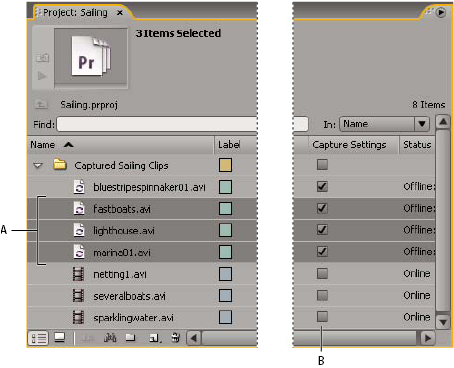
- A.
- Clips selected for capture
- B.
- Capture Settings option