

Route tracks with sends
Each track contains five sends, located in the Effects And Sends panel in the Audio Mixer. Sends are often used to route a track’s signal to a submix track for effects processing. The submix can return the processed signal to the mix by routing it to the master track, or it can route the signal to another submix. A send includes a level knob that controls the ratio of the send track volume to the submix volume. This value is called the wet/dry ratio, with “wet” referring to the effects‑processed submix signal and “dry” referring to the signal from the send track. A wet/dry ratio of 100% indicates that the wet signal is output at full strength. The submix volume affects the wet signal, and the send track’s volume affects the dry signal.
A send can be applied pre‑fader or post‑fader, and the outcome is that the track audio is sent either before or after the track’s volume fader is applied. With a pre‑fader send, adjusting the track fader doesn’t affect the output level from the send. A post‑fader send maintains the wet/dry ratio, fading the wet and dry signals simultaneously as you adjust the send track’s volume.
 Send a track to a submix
- (Optional) To display the Effects And Sends panel in the Audio Mixer, click the Show/Hide Effects And Sends triangle at the left side of the Audio Mixer.
- In the Effects And Sends panel, do one of the following:
-
To send to an existing submix, click a Send Assignment Selection triangle and choose a submix name from the pop‑up menu.
-
To create and send a new submix, click a Send Assignment Selection triangle and choose one of the following: Create Mono Submix, Create Stereo Submix, or Create 5.1 Submix.
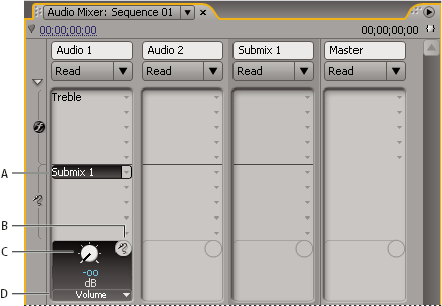 Sends
Sends
- A.
- Name of submix assigned to send, and Send Assignment pop‑up menu
- B.
- Send mute
- C.
- Control knob for selected send property
- D.
- Send Properties pop‑up menu
-
Edit Send settings
- (Optional) Choose the send property you want to edit
from the Selected Parameter menu below the selected send property
control.
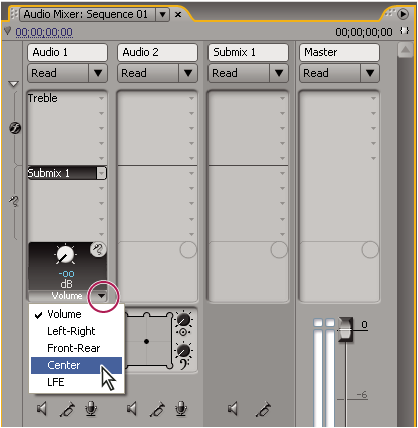 Choosing from Selected Parameter menu
Work with sends
- (Optional) To display the Effects And Sends panel in the Audio Mixer, click the Show/Hide Effects And Sends triangle at the left side of the Audio Mixer.
- Do any of the following:
-
To designate a send as a pre‑fader or post‑fader, right-click (Windows) or Control-click (Mac OS) a send and choose Pre‑Fader or Post‑Fader from the context menu.
-
To mute a send, click the Send Mute button
 next
to the send control knob for the selected send property.
next
to the send control knob for the selected send property. -
To delete a send, choose None from the Send Assignment Selection pop‑up menu.
-