

Display transitions in the Effect Controls panel
You can use the Effect Controls panel to change settings for a transition you placed in a sequence. Settings vary from transition to transition.
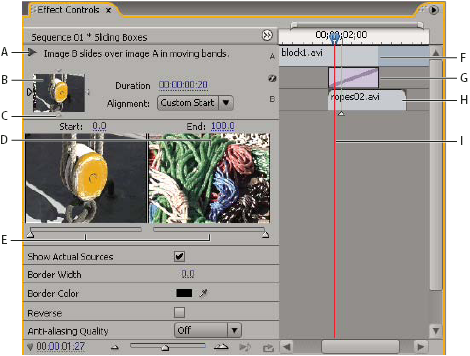
Transition in Effect Controls panel
- A.
- Play The Transition button
- B.
- Transition preview
- C.
- Edge selector
- D.
- Clip previews
- E.
- Start and End sliders
- F.
- Clip A (first clip)
- G.
- Transition
- H.
- Clip B (second clip)
- I.
- Current‑time indicator
- To show or hide the time ruler in the Effect Controls
panel, click the Show/Hide Timeline View button
 . If
necessary, widen the panel to make this button visible and active.
. If
necessary, widen the panel to make this button visible and active.