

Adjust transition alignment
You can change the alignment of a transition placed between two clips in either the Timeline panel or the Effect Controls panel. A transition need not be centered or strictly aligned to the cut. You can drag the transition to reposition it over the cut as desired.
Note: You can’t change a double‑sided transition into a single‑sided
transition. If you realign a double‑sided transition to the start
or end of a clip, it will use handles from the adjacent clip.
 Align a transition in the Timeline panel
- Drag the transition over the cut to reposition it.
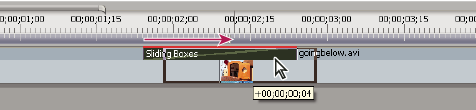 Dragging the transition in the Timeline panel to reposition it
Align a transition using the Effect Controls panel
- Double‑click the transition in the Timeline panel to open the Effect Controls panel.
- If the Effect Controls time ruler is not visible, click
the Show/Hide Timeline View button
 in
the Effect Controls panel. If necessary, widen the panel to make this
button visible and active.
in
the Effect Controls panel. If necessary, widen the panel to make this
button visible and active. - In the Effect Controls time ruler, position the pointer
over the center of the transition until the Slide Transition icon
 appears;
then drag the transition as desired. For finer control, magnify
the time ruler.
appears;
then drag the transition as desired. For finer control, magnify
the time ruler.-
To place all of the transition in the clip preceding the edit point, drag the transition to the left to align its end to the edit point.
-
To place all of the transition in the clip following the edit point, drag the transition to the right to align its beginning to the edit point.
-
To place unequal portions of the transition in each clip, drag the transition slightly left or right. For finer control, zoom in on the time ruler.
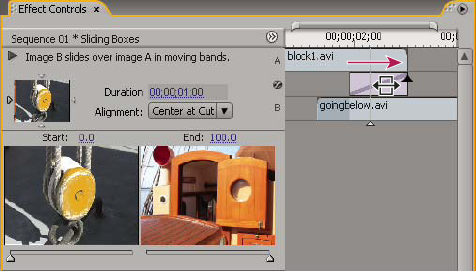 Dragging the transition in the Effect Controls time ruler
 You can also choose an option from the Alignment
pop‑up menu in the Effect Controls panel. Custom Start appears as
an option in the Alignment field only when you drag the transition
to a custom location over the cut.
You can also choose an option from the Alignment
pop‑up menu in the Effect Controls panel. Custom Start appears as
an option in the Alignment field only when you drag the transition
to a custom location over the cut.
-