

Add and remove rows and columns
To add and remove rows and columns, use the Modify > Table or column header menu.
 Pressing Tab in the last cell of a table automatically
adds another row to the table.
Pressing Tab in the last cell of a table automatically
adds another row to the table. Add a single row or column
 Click in a cell and do one of the
following:
Click in a cell and do one of the
following:-
Select Modify > Table > Insert Row or Modify > Table > Insert Column.
A row appears above the insertion point or a column appears to the left of the insertion point.
-
Click the column header menu, and then select Insert Column Left or Insert Column Right.
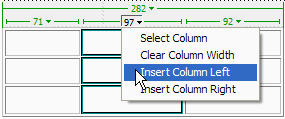
Add multiple rows or columns
Delete a row or column
Do one of the following:-
Click in a cell within the row or column you want to delete, then select Modify > Table > Delete Row, or Modify > Table > Delete Column.
-
Select a complete row or column, then select Edit > Clear or press Delete.
Add or delete rows or columns using the Property inspector
- Select the table.
- In the Property inspector (Windows > Properties),
do one of the following:
-
To add or delete rows, increase or decrease the Rows value.
-
To add or delete columns, increase or decrease the Cols value.
Note: Dreamweaver does not warn you if you are deleting rows and columns that contain data.
-