

Resize tables, columns, and rows
 Resize a table
 Select the table.
-
To resize the table horizontally, drag the selection handle on the right.
-
To resize the table vertically, drag the selection handle on the bottom.
-
To resize the table in both dimensions, drag the selection handle at the lower-right corner.
Change a column’s width and keep the overall table width
Drag the right border of the column
you want to change.
The width of the adjacent column also changes, so you actually resize two columns. Visual feedback shows you how the columns will adjust; the overall table width does not change.
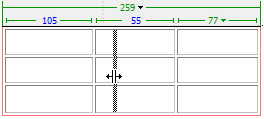
Change a column’s width and maintain the size of the other columns
Hold the Shift key and drag the
column’s border.
The width of one column changes. Visual feedback shows you how the columns will adjust; the overall table width changes to accommodate the column you are resizing.

Change a row’s height visually
Make column widths in code consistent with visual widths
-
Click the table
header menu, then select Make All Widths Consistent.
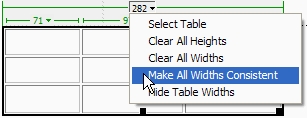
Dreamweaver resets the width specified in the code to match the visual width.
Clear all set widths or heights in a table
- Select the table.
- Do one of the following:
-
Select Modify > Table > Clear Cell Widths, or Modify > Table > Clear Cell Heights.
-
In the Property inspector, (Window > Properties), click the Clear Row Heights button
 or the
Clear Column Widths button
or the
Clear Column Widths button  .
. -
Click the table header menu, then select Clear All Heights or Clear All Widths.

-