

Add Grain effect
The Add Grain effect generates new noise from nothing and does not take samples from existing noise. Instead, a number of parameters and presets for different types of film can be used to synthesize many different types of noise or grain. You can modify virtually every characteristic of this noise, control its color, apply it to the image in several ways, even animate it or apply it selectively to only a part of your image.
This effect works with 8-bpc and 16-bpc color.
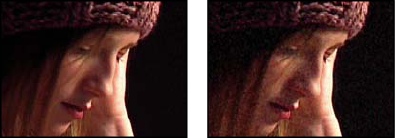
The distribution of the added noise over the color channels does affect the overall color of the resulting image. With a dark background, the noise tends to add to the image visually, so a red tint or more noise in the red channel gives a reddish hue to the image. With a bright background, the noise tends to subtract from the image visually, so a red tint or more noise in the red channel gives a cyan color. The result also depends on the Blending Mode control in the Application controls group.
You can use the Add Grain effect’s controls to do the following:
-
To reproduce the grain of a particular film or photographic stock, choose the film type from the Add Grain effect’s Preset menu in the Effect Controls panel.
-
To adjust the intensity and size of the applied grain and introduce a blur, adjust the Tweaking controls group for the Add Grain effect in the Effect Controls panel.
-
To modify the color of the added noise, adjust the Color controls.
-
To define how the color value of the generated noise combines with the color value of the underlying destination layer at each pixel, choose a Blending Mode in the Application controls group.
-
To define how much grain is added to each tonal area in your image and the midpoint, adjust the Shadows, Midtones, Highlights and Midpoint values in the Application controls group.
-
To animate the added grain, adjust the properties in the Animation controls group.
-
To apply the effect to the entire image, choose Final Output from the Viewing Mode menu.
Tweaking controls for Grain effects
The Match Grain and Add Grain effects share a group of Tweaking controls. You can use these controls to modify the intensity and size of the noise and to introduce a blur, all of which can be done across the three channels or individually for each channel. You can also change the aspect ratio of the applied grain.
Adjust any of the following controls in the Tweaking controls group:
- Intensity
- Controls the amount of variation in brightness and color strength between pixels in the generated noise, which determines the visibility of the noise. Increasing the value does not change the position or size of each grain but makes the grain appear to pop more; lower values give a more subtle muted appearance.
- Channel Intensities
- Controls the contrast between pixels in the generated noise separately for each channel. For example, you may want to add more grain to the blue channel to emulate film.
- Size
- Adjusts the size of the generated grain in pixels.
- Channel Size
- Adjusts the size of the generated grain in pixels independently for each channel.
- Softness
- Sets the amount of softness in the grain.
- Aspect Ratio
- Controls the ratio of the width of the generated grain over a constant height of 1; this is useful for emulating the effect of anamorphic lenses or for aesthetic effects. A value higher than 1 stretches the grain horizontally; values smaller than 1 squash it horizontally.