The Color Range effect creates transparency
by keying out a specified range of colors in either the Lab, YUV,
or RGB color space. You can use this key on screens that consist
of more than one color or on bluescreens or greenscreens that have been
unevenly lit and contain different shades of the same color.
This effect works with 8-bpc color.
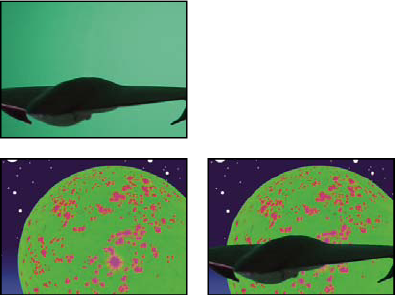
Poorly lit greenscreen (top left) and background layer (bottom
left) are combined using Color Range Key (bottom right).
-
Select
the layer you want to make transparent, and then choose Effect > Keying >
Color Range.
- Choose Lab, YUV, or RGB from the Color Space menu. If
you have trouble isolating the subject using one color space, try
using a different one.
- Select the Key Color eyedropper, and then click in the
matte thumbnail to select the area that corresponds to a color in
the Composition panel you want to make transparent. Typically, this
first color is the one that covers the largest area of the image.
Note: To use the eyedroppers in the Layer panel, choose Color
Range from the View menu in the Layer panel.
- Select the Plus eyedropper, and then click other areas
in the matte thumbnail to add other colors or shades to the range
of colors keyed out for transparency.
- Select the Minus eyedropper, and then click areas in
the matte thumbnail to subtract other colors or shades from the
range of colors keyed out.
- Drag the Fuzziness slider to soften the edges between
transparent and opaque regions.
- Use the sliders in the Min/Max controls to fine-tune
the color range you selected with the Plus and Minus eyedroppers.
The L, Y, R sliders control the first component of the specified
color space; the a, U, G sliders control the second component; and
the b, V, B sliders control the third component. Drag the Min sliders
to fine-tune the beginning of the color range. Drag the Max sliders
to fine-tune the end of the color range.


 Use the Color Range effect