The
Difference Matte effect creates transparency by comparing a source
layer with a difference layer, and then keying out pixels in the
source layer that match both the position and color in the difference
layer. Typically, it’s used to key out a static background behind
a moving object, which is then placed on a different background.
Often the difference layer is simply a frame of background footage (before
the moving object has entered the scene). For this reason, the Difference Matte
effect is best used for scenes that have been shot with a stationary
camera and an unmoving background.
This effect works with 8-bpc and 16-bpc color.
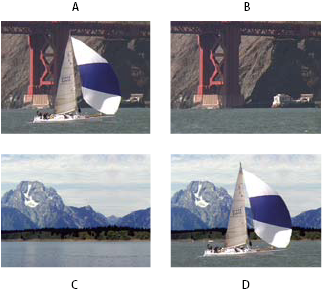
Difference Matte Key effect
- A.
- Original image
- B.
- Background
image
- C.
- New background image
- D.
- Final
composite image
- Select a motion footage layer as
the source layer.
- In the source layer, find a frame that consists only
of background, and save the background frame as an image file.
- Import the image file into After Effects, and add it
to the composition. (See Export a single frame of a composition.)
The imported image becomes the difference layer. Make sure
that its duration is at least as long as that of the source layer.
Note: If
the shot doesn’t contain a full background frame, you may be able
to assemble the full background by combining parts of several frames
in After Effects or Photoshop. For example, you can use the Clone
Stamp tool to take a sample of the background in one frame, and
then paint the sample over part of the background in another frame.
- Turn off the display of the difference layer by clicking
the Video switch in the Timeline panel.
- Make sure that the original source layer is selected,
and then choose Effect > Keying > Difference
Matte.
- In the Effect Controls panel, choose Final Output or
Matte Only from the View menu. (Use the Matte Only view to check
for holes in the transparency. To fill undesired holes after you
complete the keying process, see Close a hole in a matte.)
- Select the background file from the Difference Layer
menu.
- If the difference layer isn’t the same size as the source
layer, choose one of the following controls from the If Layer Sizes
Differ menu:
- Center
-
Places the difference layer in the center of the source
layer. If the difference layer is smaller than the source layer,
the rest of the layer fills with black.
- Stretch To Fit
-
Stretches or shrinks the difference layer to the size
of the source layer. Background images may become distorted.
- Adjust the Matching Tolerance slider to specify the amount
of transparency based on how closely colors must match between the
layers. Lower values produce less transparency; higher values produce
more transparency.
- Adjust the Matching Softness slider to soften the edges
between transparent and opaque areas. Higher values make matched
pixels more transparent but don’t increase the number of matching
pixels.
- If the matte still contains extraneous pixels, adjust
the Blur Before Difference slider. This slider suppresses noise
by slightly blurring both layers before the comparison is made.
Note that the blurring occurs only for the comparison and doesn’t
blur final output.
- Before closing the Effect Controls panel, make sure to
select Final Output from the View menu to ensure that After Effects
renders the transparency.


 Use the Difference Matte effect