

Luma Key effect
The Luma Key effect keys out all the regions of a layer with a specified luminance or brightness. The layer’s quality setting doesn’t influence the Luma Key effect.
Use this effect if the object from which you want to create a matte has a greatly different luminance value than its background. For example, if you want to create a matte for musical notes on a white background, you can key out the brighter values; the dark musical notes become the only opaque areas.
This effect works with 8-bpc and 16-bpc color.
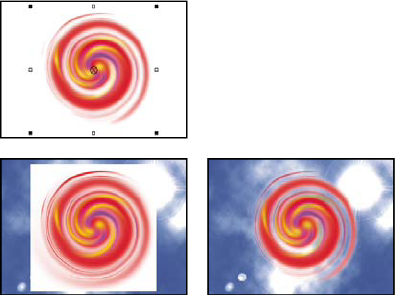
White background of original (top left and bottom left) is
removed using Luma Key and composited over underlying layer (bottom
right).
 Key out a luminance value with the Luma Key effect
- Select the layer, and choose Effect > Keying > Luma Key.
- Select a Key Type to specify the range to be keyed out.
- Drag the Threshold slider in the Effect Controls panel to set the luminance value you want the matte to be based on.
- Drag the Tolerance slider to specify the range of values to be keyed out. Lower values key out a smaller range of values near the threshold. Higher values key out a wider range of values.
- Drag the Edge Thin slider to adjust the width of the keyed area’s border. Positive values make the mask grow, increasing the transparent area. Negative values shrink the mask.
- Drag the Edge Feather slider to specify the softness of the edge. Higher values create a softer edge but take longer to render.